
Overview
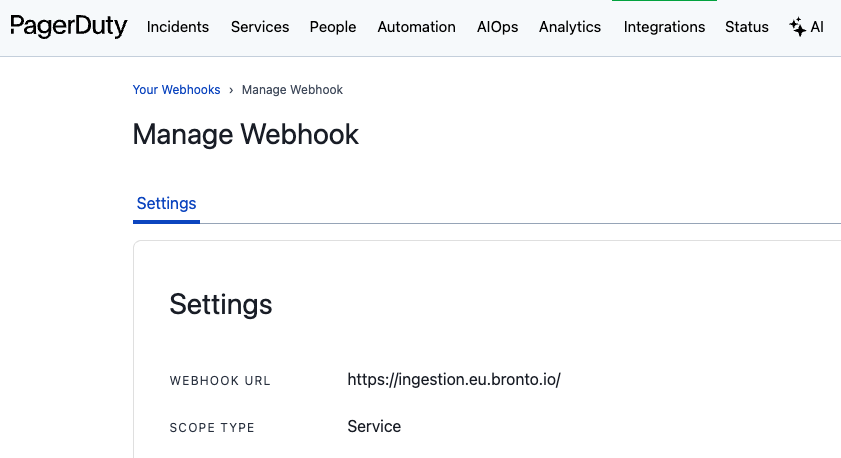
PagerDuty supports delivering event data to third-party systems using its Generic Webhooks integration. This guide walks you through configuring PagerDuty to forward PagerDuty events into Bronto for storage and analysis. PagerDuty webhooks can be configured at different scopes and allow you to subscribe to specific event types. For detailed information on PagerDuty webhooks, scopes, and available event types, refer to the official PagerDuty documentation. Once configured, PagerDuty will send event payloads via HTTPS to Bronto’s ingestion endpoint.PagerDuty Webhook Configuration
- Create a Generic Webhook in PagerDuty.
- Choose the desired scope and event types. Refer to the PagerDuty documentation for details. Configure the webhook with destination URL:
<region> refers to your data storage region, e.g., “eu”, “us”.
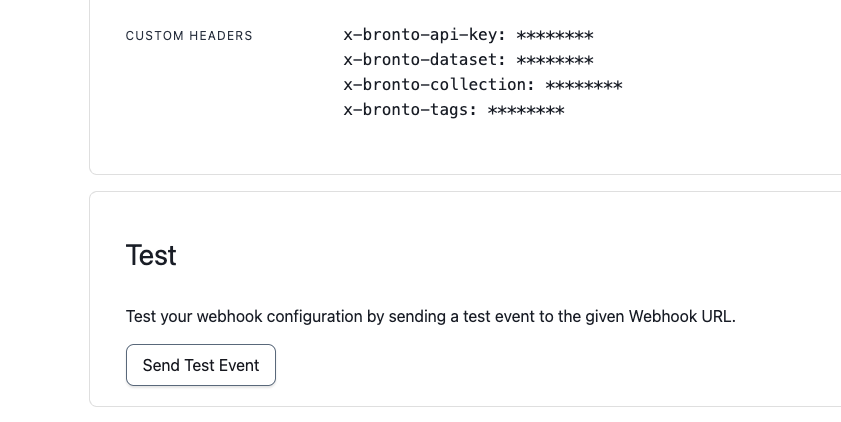
- Custom Headers Add the following custom headers to the webhook:
x-bronto-api-key- your Bronto API key. Tip: It is recommended to create a dedicated API key for PagerDuty with ingestion-only permissions. See the Bronto API Keys documentation for details.x-bronto-dataset- target dataset name in Bronto. (Does not need to pre-exist in Bronto. It will be automatically created when events are ingested.)x-bronto-collection- target collection name in Bronto. (Does not need to pre-exist in Bronto. It will be automatically created when events are ingested.)x-bronto-tags(optional) -<key1=value1,key2=value2,..>
Testing the Integration
After saving the webhook, click Send Test Event in PagerDuty. The event should appear in Bronto under the specified dataset within a few seconds to a few minutes.Screenshots