

- What multi-organisation support does (and does not do)
- How to enable it
- How access works with users and groups
1. What Multi-Organisation Support Does
When enabled, multi-organisation support allows you to:- Create separate organisations under a single parent (management) organisation
- Assign users or groups to each organisation with specific roles
- Cleanly isolate data, dashboards, monitors, and integrations between organisations
- Switch between organisations using a selector in the interface
2. What Multi-Organisation Support Does Not Do
To avoid confusion, multi-organisation support has the following limitations:- You cannot query multiple organisations at the same time
- All searches, dashboards, monitors, and API requests operate only on the currently selected organisation
- There is no cross-organisation aggregation, federated querying, or unified analytics view
- Switching organisations fully changes context, including:
- Data
- Dashboards
- Monitors
- Integrations
- Usage
3. Enabling Multi-Organisation Mode
To enable multi-organisation support:- Go to Settings → Organisations
- Open the General tab
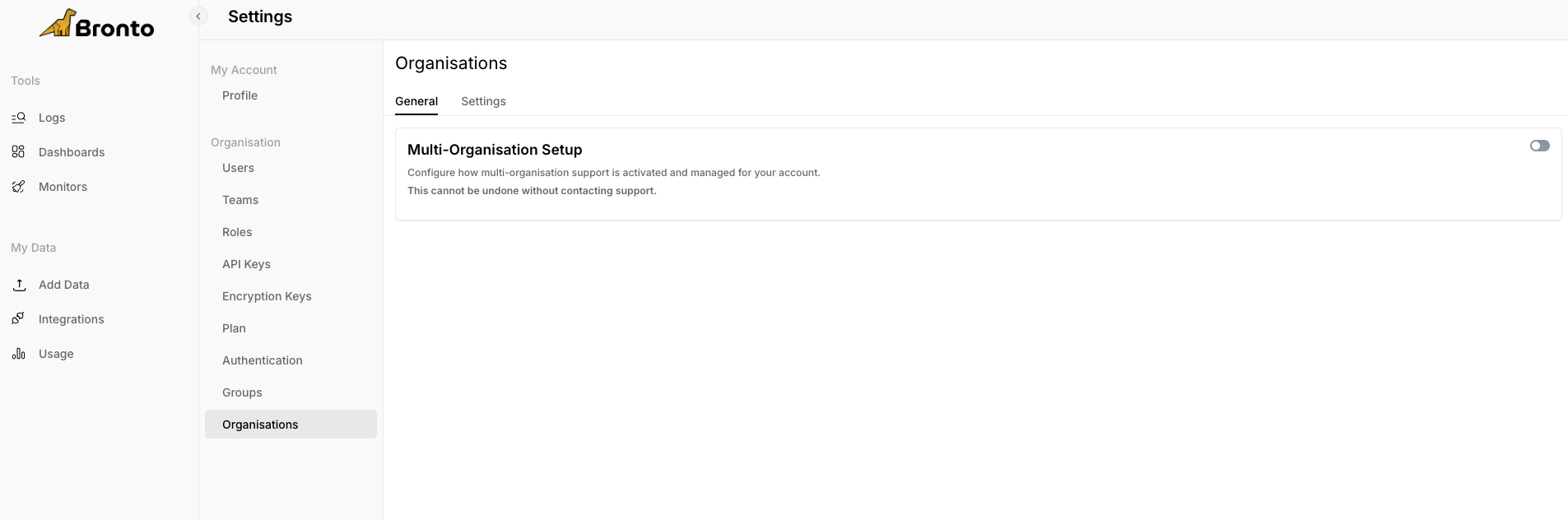
- Toggle Multi-Organisation Setup to enable it
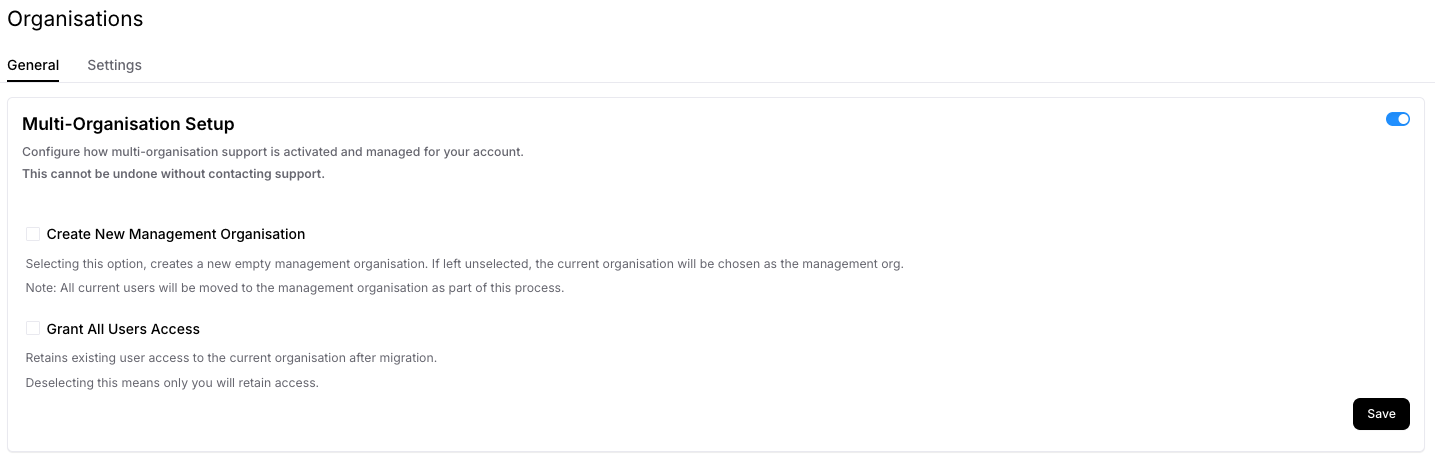
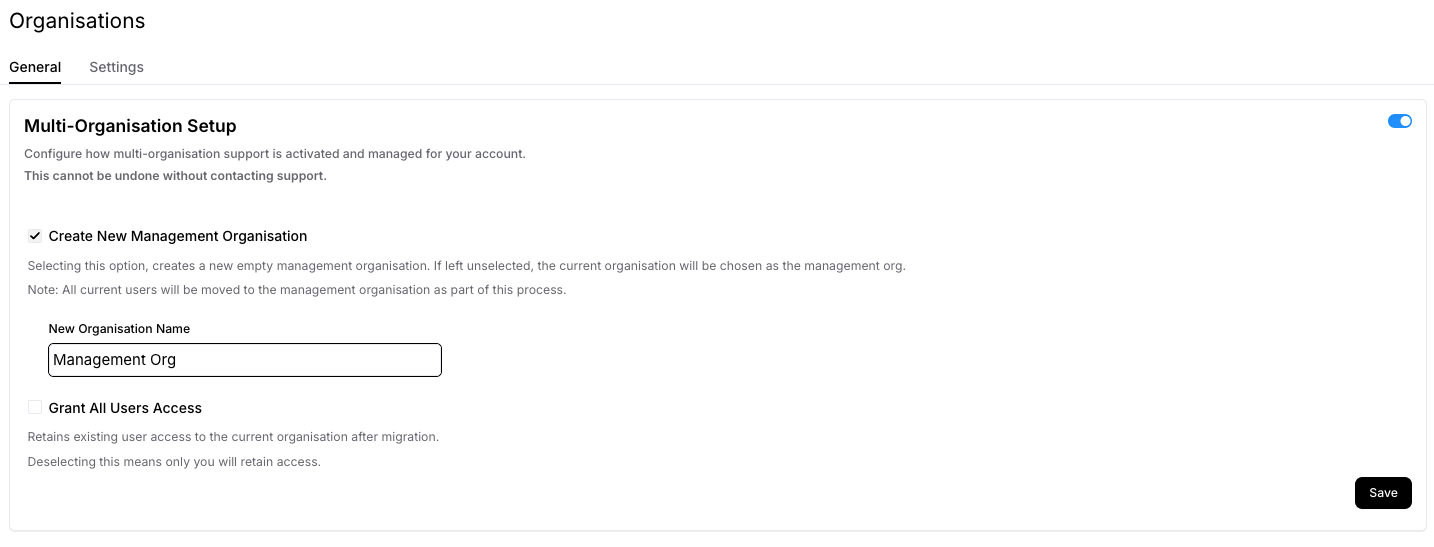
Create New Management Organisation
- Creates a new, empty parent (management) organisation
- If disabled, your current organisation becomes the management organisation
- If enabled, you will be prompted to provide a name for the new management organisation
Grant All Users Access
- Retains access for all existing users after migration
- If disabled, only you (the administrator) retain access initially
- This operation cannot be undone without contacting support
Note:
The administrator who enables multi-organisation support is automatically added as an Admin to:
- The management organisation
- Any newly created child organisations
Sign-in Required
After enabling multi-organisation support, log out and back in to refresh your session.4. The Organisation Switcher
After signing back in, an organisation selector appears in the top-left of the navigation menu. This dropdown shows every organisation you have access to. Selecting an organisation switches your entire Bronto workspace to that context.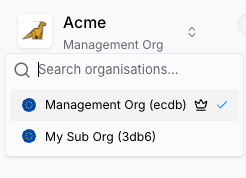
Note:
The management organisation is denoted by a crown icon.
5. Groups: Managing Access at Scale
Groups simplify managing access across multiple organisations. A group is a platform-level collection of users that can be granted roles on one or more organisations.Creating a Group
- Go to Settings → Groups
- Click Create Group and provide a name
- Open the group and add users using the Edit button
- Global across the platform
- Visible and manageable only from the management organisation
6. Assigning Users and Groups to Organisations
To manage organisation access:- Go to Settings → Organisations
- Select an organisation
- Click Edit Organisation
- Add users directly
- Add groups
- Assign roles to each (e.g. Viewer, Editor, Admin)
Group Access Behaviour
When adding a group:- All users in the group automatically gain access
- Permissions are determined by the role assigned to the group
- Access persists until:
- The user is removed from the group, or
- The group’s organisation assignment is changed
Roles are additive
A user’s effective permissions are the combined permissions from all roles they hold across direct and group assignments.
7. Notes and Behaviour
- Groups and Organisations settings are only available in the management organisation
- Users can belong to multiple organisations with different roles in each
- Removing a user from a group immediately removes their inherited organisation access
- Child organisations cannot create or modify groups