

Overview
The AWS DevOps Agent is an AI assistant for operating AWS workloads. By registering Bronto’s hosted MCP server as a Capability Provider, the DevOps Agent can search your Bronto log datasets and call Bronto’s time-series and schema-discovery tools while it investigates issues — grounding its reasoning in your actual log data instead of just AWS service state. Metrics and traces are not stored in datasets or collections; view them in Bronto’s Metric Explorer and Explore Traces. This page walks through registering the Bronto MCP server in the AWS DevOps Agent console using API-key authentication. For the underlying AWS workflow, see the AWS documentation on connecting MCP servers.Prerequisites
- A Bronto account with data being ingested. If you haven’t sent data yet, set up an agent first.
- A Bronto API key with search permissions. See API Keys.
- Access to the AWS DevOps Agent in your AWS account, with permission to register Capability Providers.
- The Bronto hosted MCP endpoint for your region — see Hosted MCP Server.
Register the Bronto MCP server
1
Open the Register MCP Server wizard
In the AWS DevOps Agent console, open Capability Providers and start the Register MCP Server flow.
2
Step 1 — MCP server details
Enter the server details: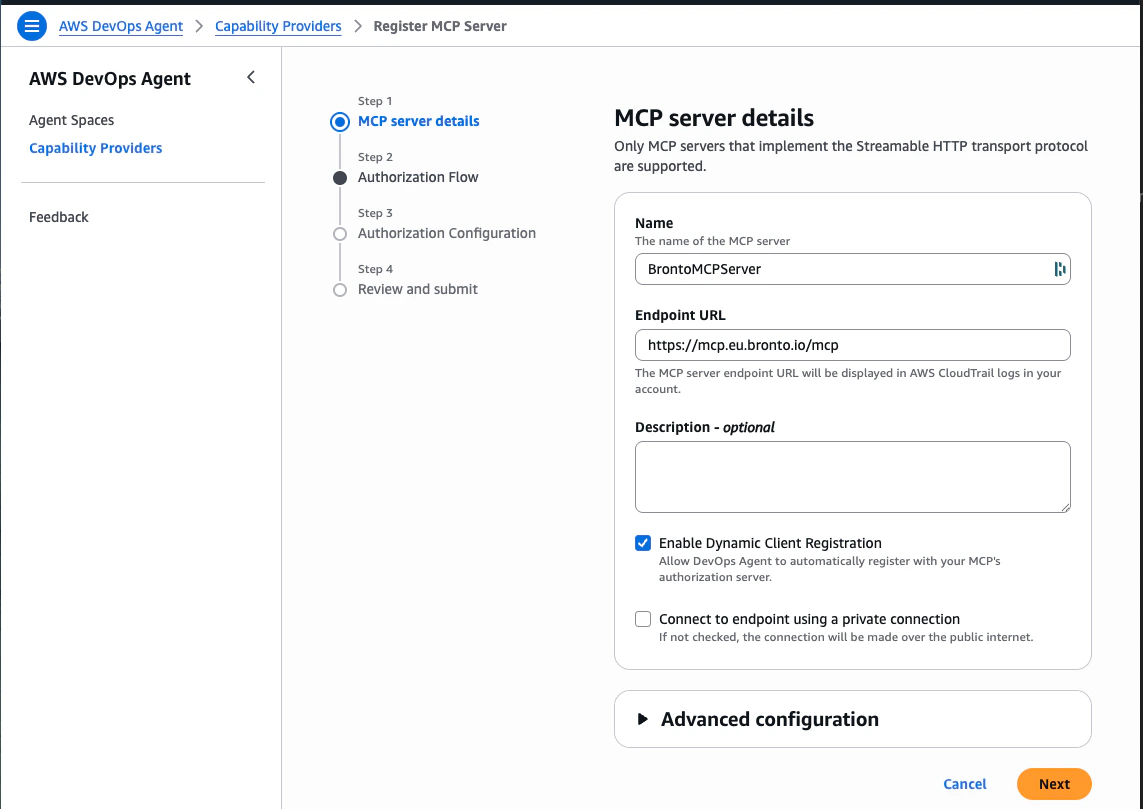
Bronto’s hosted MCP server implements the Streamable HTTP transport, which is what the DevOps Agent requires.
3
Step 2 — Authorization Flow
Select API Key as the authorization flow. The Bronto hosted MCP server authenticates incoming requests via a static API-key header, so this is the correct option — not OAuth or AWS SigV4.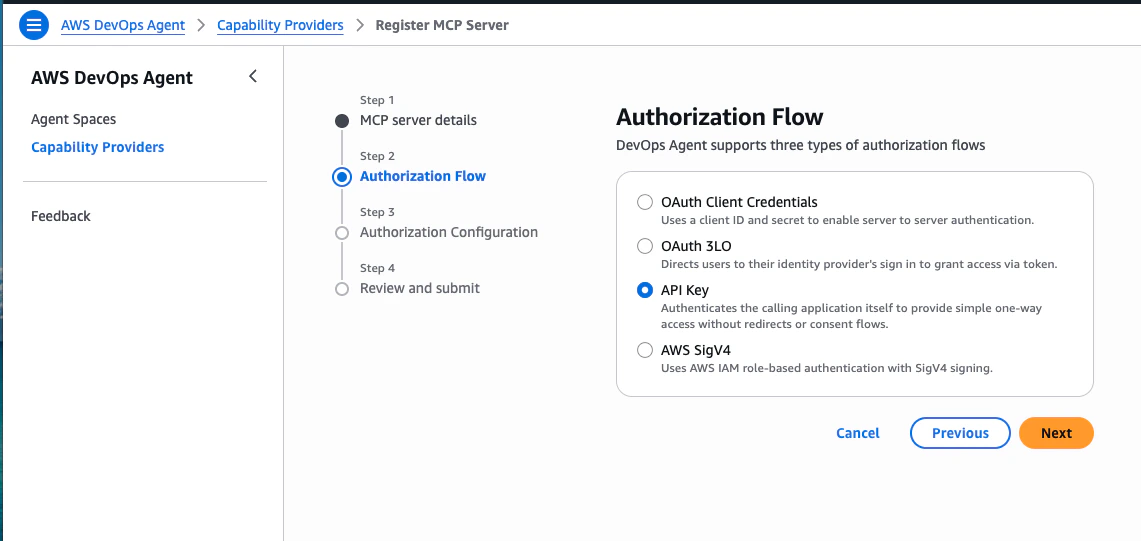
4
Step 3 — Authorization Configuration
Enter the API-key configuration that Bronto expects: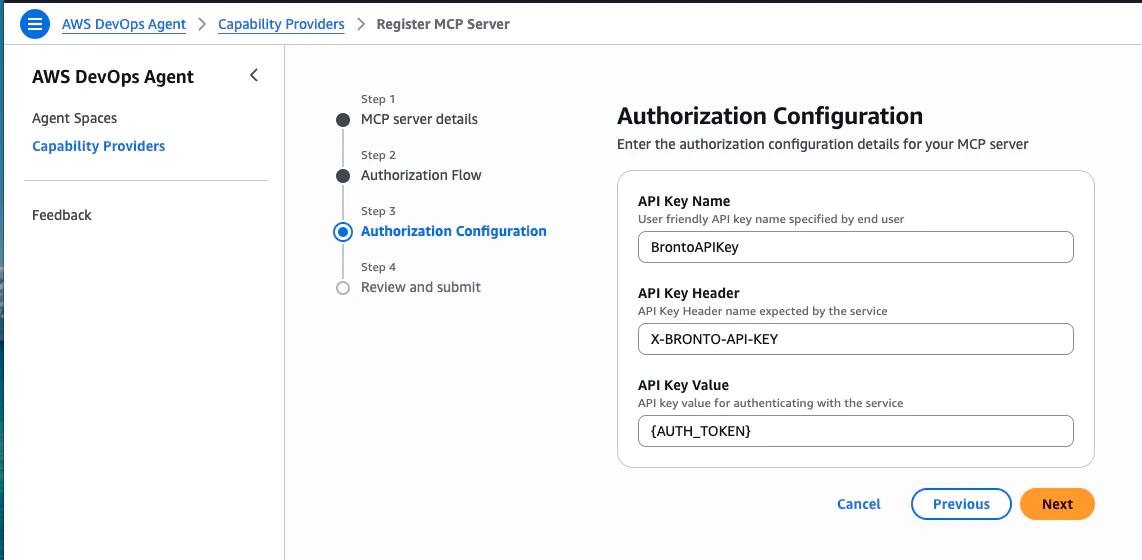
5
Step 4 — Review and submit
Confirm the MCP server details and authorization configuration, then click Add.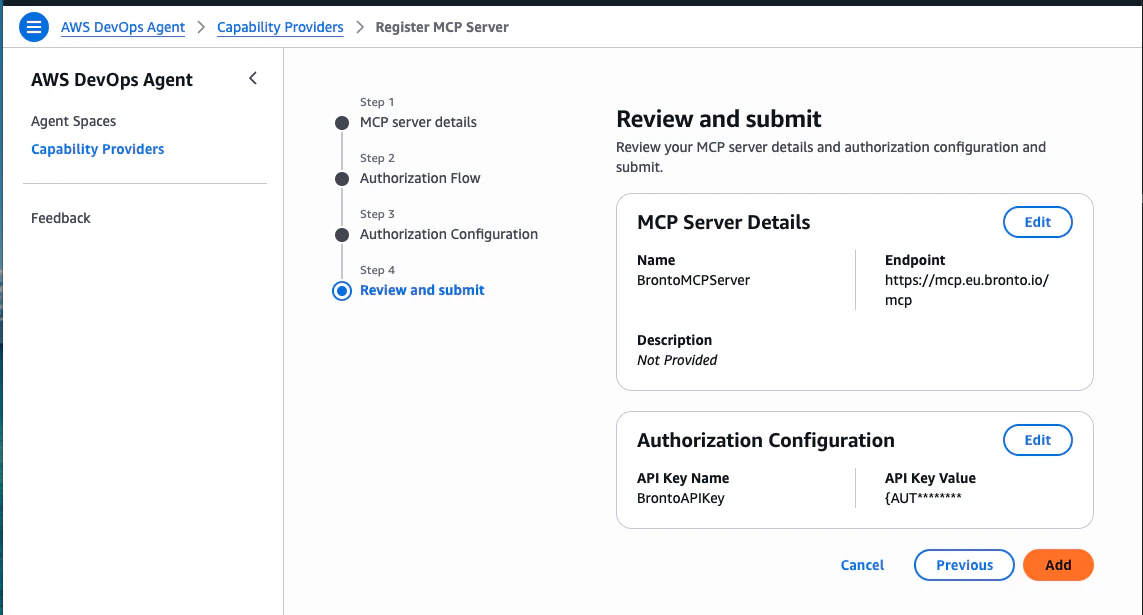
Select MCP server tools
After registration, the DevOps Agent prompts you to choose which Bronto tools it is allowed to call. The Bronto hosted MCP server exposes a set of read-only tools that cover log schema discovery, log search, time-series analysis over log data, and saved searches. These dataset tools do not query metrics or traces.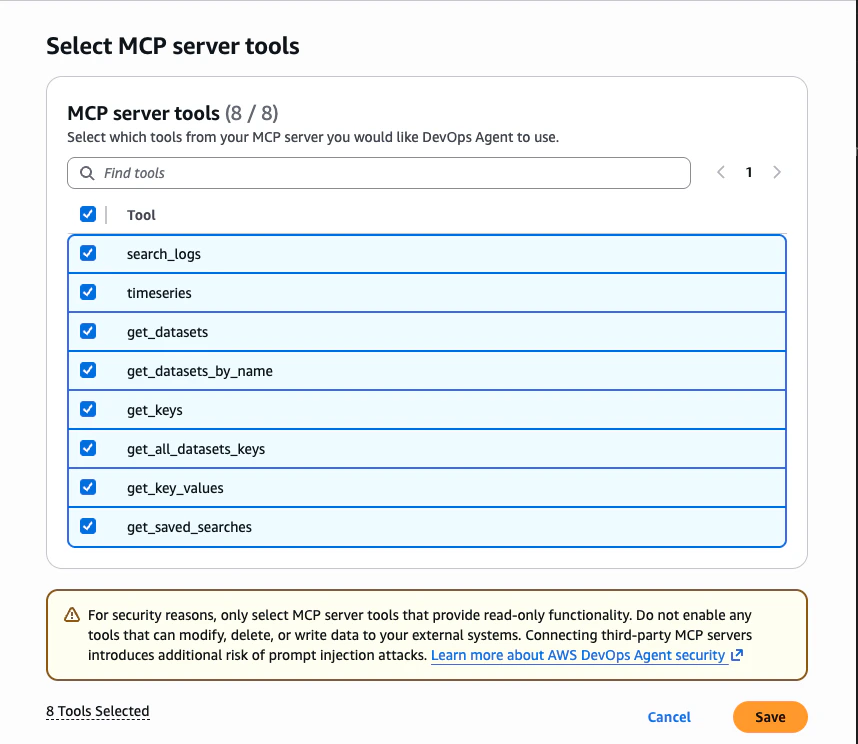
get_datasets and get_keys to discover the right dataset and schema before issuing a search_logs or timeseries query.
For full descriptions of each tool, see Hosted MCP Server — Capabilities.
As shown in the AWS UI, only enable MCP tools that are read-only. All Bronto tools listed here are read-only — they query log data and metadata without modifying anything in your Bronto account.
Verify the connection
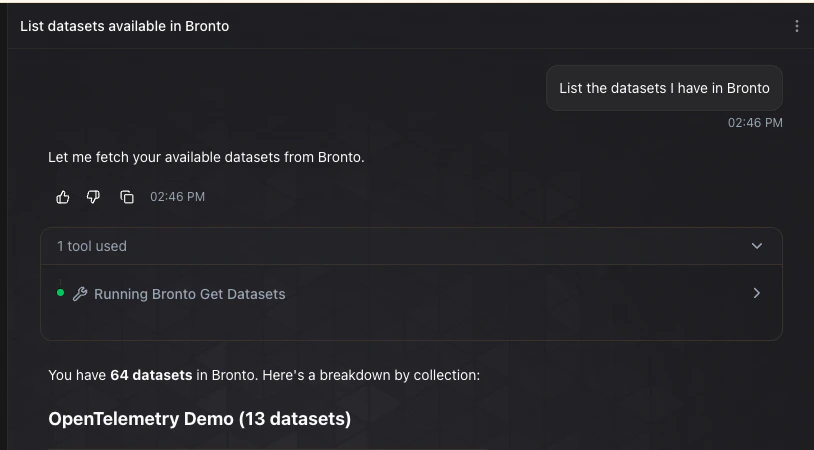
Open an Agent Space in the AWS DevOps Agent console and ask a question that requires Bronto data, for example:get_datasets against the Bronto MCP server and return the datasets in your account.
Example use cases
Once the Bronto Capability Provider is attached to an Agent Space, the DevOps Agent can combine AWS service state with Bronto telemetry in a single investigation. A few common workflows:Root-cause a service incident with log context
When a service is misbehaving — elevated errors, failing health checks, customer reports, or a triggered alert — the agent can identify the affected resource in AWS and then callsearch_logs against the Bronto dataset for that service to surface the errors driving the incident. That includes stack traces, request IDs, and downstream-dependency failures that aren’t visible from AWS service state alone.
Investigate latency regressions in access logs
Ask the agent to compare request-duration fields in your log datasets with a baseline window usingtimeseries, then drill into the slowest log events with search_logs. Use Bronto’s Explore Traces page when the investigation requires span-level trace data.
Correlate deployments with error spikes
Point the agent at a recent ECS, EKS, or Lambda deployment and ask whether errors increased after the rollout. The agent uses AWS to identify the deploy window and Bronto to count and sample errors before and after — giving you a quick verdict on whether to roll back.Diagnose noisy or failing AWS Lambda functions
For a specific Lambda function, the agent can fetch recent invocations from AWS and then callsearch_logs with the function name as a filter to summarise the dominant error patterns. Useful when a function is silently retrying, timing out, or hitting a downstream rate limit.
Investigate elevated 5xx responses behind ALB or API Gateway
Combine AWS ALB or API Gateway metrics with Bronto access logs to find the host, path, and upstream service driving a 5xx spike. The agent can useget_keys to discover the right fields in your dataset before grouping and filtering — without you having to remember the schema.
Follow a request through correlated logs
When you have a request ID, trace ID, or user ID from an AWS support case, ask the agent to find related log events in Bronto. The agent searches log datasets to assemble a timeline from correlated logs. To inspect the spans in a distributed trace, open Explore Traces in Bronto.Troubleshooting
Authentication errors when the agent calls Bronto. Double-check that the API Key Header is exactlyX-BRONTO-API-KEY and that the API key value is valid and has search permissions. Also confirm you registered the endpoint for the correct region (US vs EU) — a mismatched region returns an authentication error.
The agent does not call Bronto tools. Confirm the tools were enabled on the Select MCP server tools step, and that the Bronto Capability Provider is attached to the Agent Space where you are prompting from.