> ## Documentation Index
> Fetch the complete documentation index at: https://docs.bronto.io/llms.txt
> Use this file to discover all available pages before exploring further.
# Cloudflare
> Forward Cloudflare HTTP request, firewall, and Workers logs to Bronto in near real time using Logpush for analysis of edge traffic and security events.
This feature is only available with an enterprise plan or by subscribing to a paid workers plan.
## Bronto API Key
First, an API key is required in order to be able to successfully ingest data into Bronto. To generate an API key in Bronto, please refer to the [API Keys documentation](/Account-Management/API-Keys).
## Method 1: UI-Based Setup (Recommended)
The easiest way to set up Logpush to Bronto is through the Cloudflare Dashboard. Follow these steps:
* Go to your Cloudflare dashboard
* Navigate to `Analytics & Logs` > `Logpush`
* Select `Create a Logpush job`
* Select Destination > Http Destination
* Enter the HTTP endpoint URL which is the Bronto ingestion URL, ensuring to replace the Region (EU, US), API Key ,and your Namespace and Service parameters:
```
https://ingestion.eu.bronto.io/?header_x-bronto-api-key=&service_namespace=&service_name=
```
* Follow the remaining prompts to complete the setup
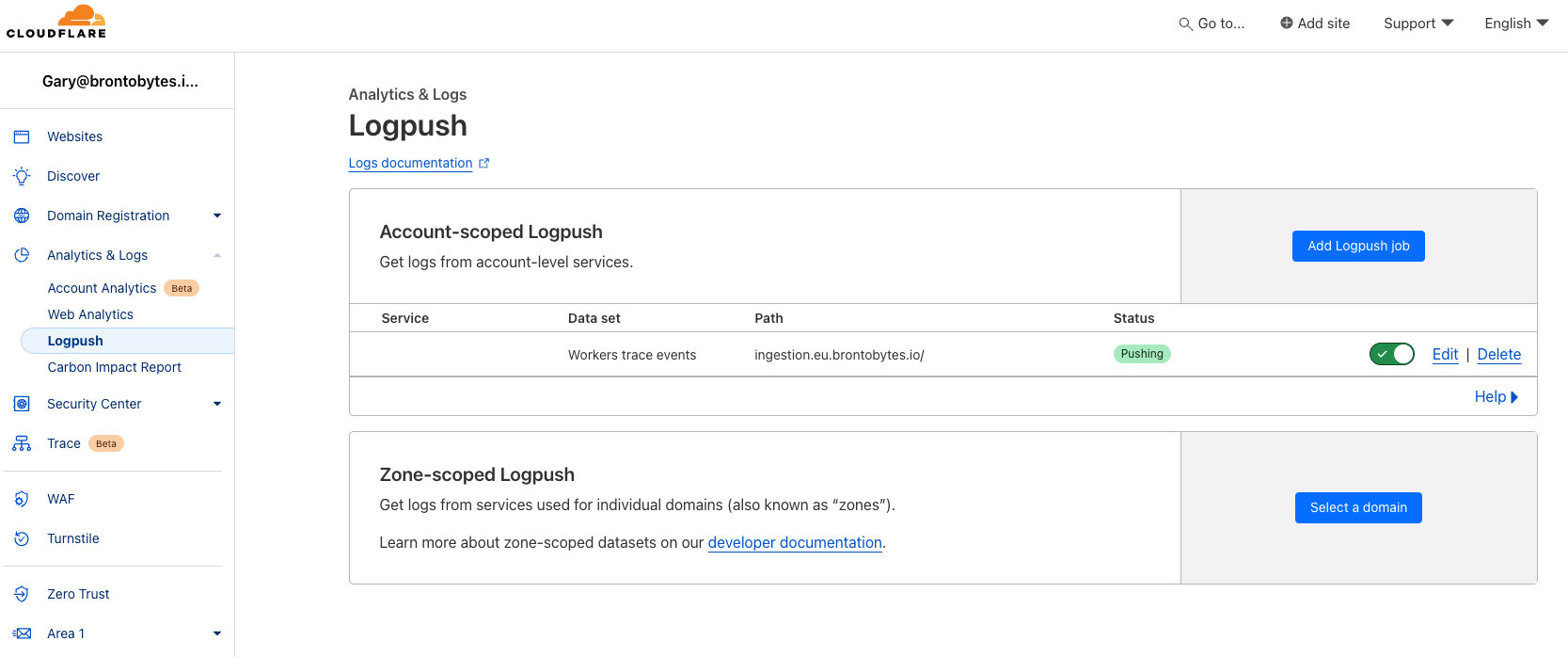
Once configured, you’ll see your Logpush job listed in the UI.
## Configuring Batch Size
Our ingestion endpoints have a limit of 10MB per HTTP payload.
Cloudflare allows users to configure the `max_upload_bytes` setting via their API. Because payloads from Cloudflare are compressed with GZIP, it is generally safe to set `max_upload_bytes` up to 20MB, as the compressed size will typically be reduced to less than 10MB.
Recommended configuration based on log volume:
* Set `max_upload_bytes` to 5MB for log volumes under 200GB/day
* Set `max_upload_bytes` to 10MB for log volumes under 500GB/day
* Set `max_upload_bytes` to 20MB for log volumes over 500GB/day
See below for an example curl to set the `max_upload_bytes` to 10MB:
```bash Set max_upload_bytes theme={"dark"}
curl -X PUT "https://api.cloudflare.com/client/v4/zones//logpush/jobs/" \
-H "Authorization: Bearer " \
-H "Content-Type: application/json" \
--data '{
"max_upload_bytes": 10000000,
}'
```
For further details please visit the dedicated Cloudflare documentation [here](https://developers.cloudflare.com/logs/logpush/logpush-job/api-configuration/#max-upload-parameters).
**Note:** Cloudflare can batch log events and only send them once the maximum batch size is reached, so some events may be delayed.
## Method 2: REST API Setup
You can also manage Logpush jobs using Cloudflare’s REST API. The full API documentation is available [here](https://developers.cloudflare.com/logs/get-started/api-configuration/).
## Cloudflare API Key
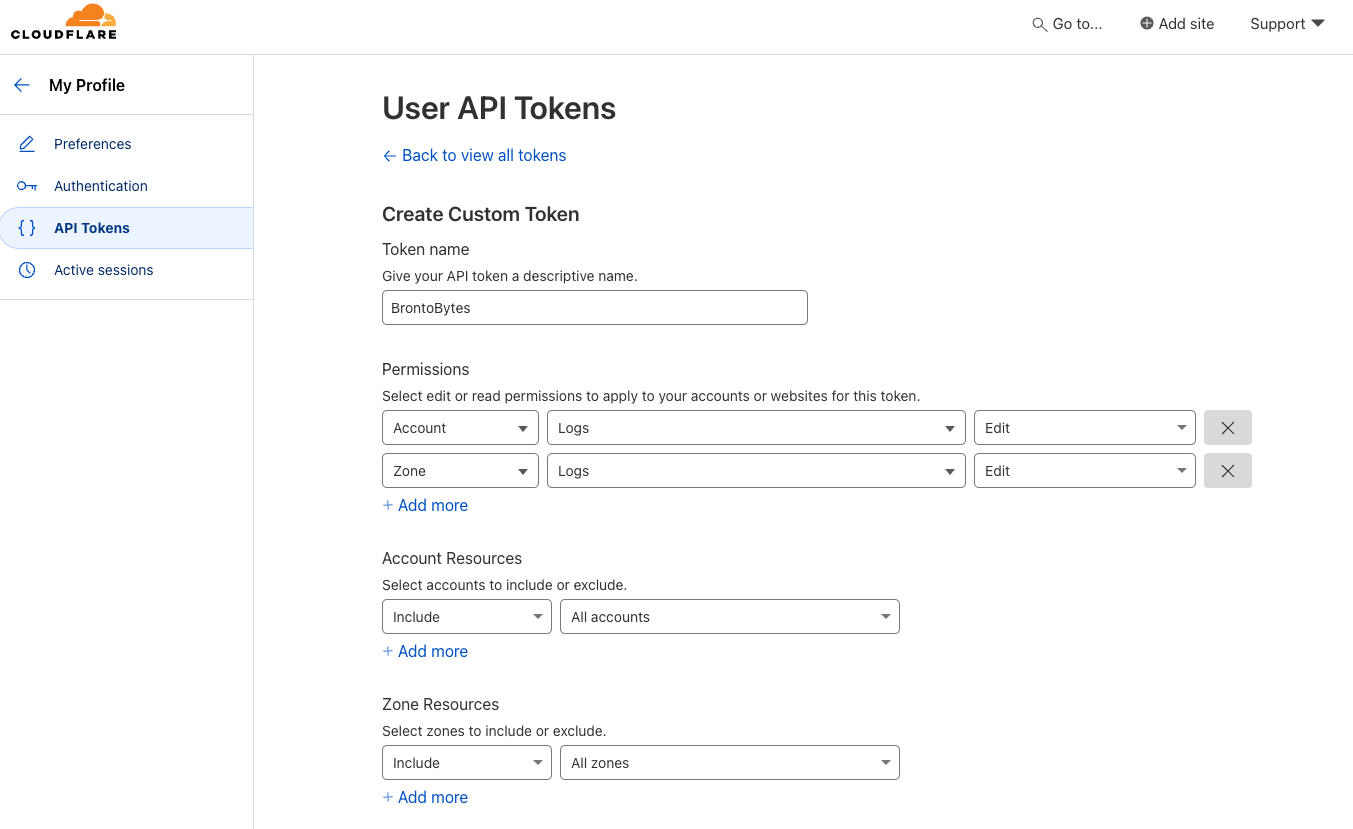
A Cloudflare API key is also required for the setup, a global API key can be used or alternatively a custom API token with Logs:Edit permissions can be created.
Bronto will not see the Cloudflare API Key or Token.
 ## Cloudflare Logging Configuration
Management of HTTP destinations is via a REST API, the full API docs can be found [here](https://developers.cloudflare.com/logs/get-started/api-configuration/). Once a new logging endpoint is created, it's visible in the Cloudflare UI under `Analytics & Logs` > `Logpush`.
## Cloudflare Logging Configuration
Management of HTTP destinations is via a REST API, the full API docs can be found [here](https://developers.cloudflare.com/logs/get-started/api-configuration/). Once a new logging endpoint is created, it's visible in the Cloudflare UI under `Analytics & Logs` > `Logpush`.
 To create a new Logpush job to forward logs to Bronto, make the follow `curl` request:
```bash Create Logpush Job theme={"dark"}
curl --request POST \
--url https://api.cloudflare.com/client/v4/accounts//logpush/jobs \
--header 'Content-Type: application/json' \
--header 'X-Auth-Email: ' \
--header 'X-Auth-Key: ' \
--data '{
"dataset": "workers_trace_events",
"destination_conf": "https://ingestion.eu.bronto.io/?header_x-bronto-api-key=&service_namespace=&service_name=",
"enabled": true,
"output_options": {
"field_delimiter": ",",
"batch_prefix": "",
"batch_suffix": "",
"CVE-2021-44228": false,
"field_names": [
"DispatchNamespace",
"Entrypoint",
"Event",
"EventTimestampMs",
"EventType",
"Exceptions",
"Logs",
"Outcome",
"ScriptName",
"ScriptTags",
"ScriptVersion"
],
"output_type": "ndjson",
"sample_rate": 1,
"timestamp_format": "unixnano"
}
}'
```
To verify a Logpush job has been created, make the following `curl` request:
```bash View Logpush Jobs theme={"dark"}
curl --request GET \
--url https://api.cloudflare.com/client/v4/accounts//logpush/jobs \
--header 'Content-Type: application/json' \
--header 'X-Auth-Email: ' \
--header 'X-Auth-Key: '
```
To create a new Logpush job to forward logs to Bronto, make the follow `curl` request:
```bash Create Logpush Job theme={"dark"}
curl --request POST \
--url https://api.cloudflare.com/client/v4/accounts//logpush/jobs \
--header 'Content-Type: application/json' \
--header 'X-Auth-Email: ' \
--header 'X-Auth-Key: ' \
--data '{
"dataset": "workers_trace_events",
"destination_conf": "https://ingestion.eu.bronto.io/?header_x-bronto-api-key=&service_namespace=&service_name=",
"enabled": true,
"output_options": {
"field_delimiter": ",",
"batch_prefix": "",
"batch_suffix": "",
"CVE-2021-44228": false,
"field_names": [
"DispatchNamespace",
"Entrypoint",
"Event",
"EventTimestampMs",
"EventType",
"Exceptions",
"Logs",
"Outcome",
"ScriptName",
"ScriptTags",
"ScriptVersion"
],
"output_type": "ndjson",
"sample_rate": 1,
"timestamp_format": "unixnano"
}
}'
```
To verify a Logpush job has been created, make the following `curl` request:
```bash View Logpush Jobs theme={"dark"}
curl --request GET \
--url https://api.cloudflare.com/client/v4/accounts//logpush/jobs \
--header 'Content-Type: application/json' \
--header 'X-Auth-Email: ' \
--header 'X-Auth-Key: '
```