> ## Documentation Index
> Fetch the complete documentation index at: https://docs.bronto.io/llms.txt
> Use this file to discover all available pages before exploring further.
# Service Level Objectives (SLOs)
> Create trace-based service level objectives in Bronto using availability or latency indicators, targets, time windows, and notifications.
Service Level Objectives (SLOs) turn request tracing data into measurable reliability targets for individual services and endpoints. In Bronto, you can measure availability or latency, set a target over a time window, and optionally send a notification when attainment reaches a threshold.
## SLO concepts
| Term | Meaning |
| - | - |
| **Service Level Indicator (SLI)** | The measurement used to evaluate service behavior, such as the percentage of successful or sufficiently fast requests. |
| **Service Level Objective (SLO)** | The target value an SLI should meet over a selected time window. |
| **Attainment** | The percentage of valid requests that currently meet the objective. |
| **Error budget** | The percentage of valid requests allowed to miss the objective. A 99% target provides a 1% error budget. |
SLOs use request entry spans. Before creating one, make sure the service is sending traces with a `service.name`, endpoint information, request duration, and the status attributes needed to identify errors. See [Send Traces to Bronto](/tracing/send-traces).
## Find SLO candidates
Select **SLOs** from the left navigation. Bronto analyzes request spans from the previous 28 days and suggests services and endpoints that may benefit from an objective.
Each candidate summarizes its:
* service and endpoint
* success rate
* p95 latency
* request volume
* recent error-rate or latency trend
Use the service filter to narrow the list, or select **Rescan** to refresh the candidates. Select **Set an objective** beside a candidate to prefill its service and endpoint. To start without a candidate, select **New objective manually**.
## Create an objective
Select a service and endpoint.
Choose **Availability** or **Latency** as the SLI.
Set the target percentage and select a rolling or calendar window.
Name the objective and optionally configure a notification.
Review the live preview and objective summary, then select **Create objective**.
### Choose an SLI
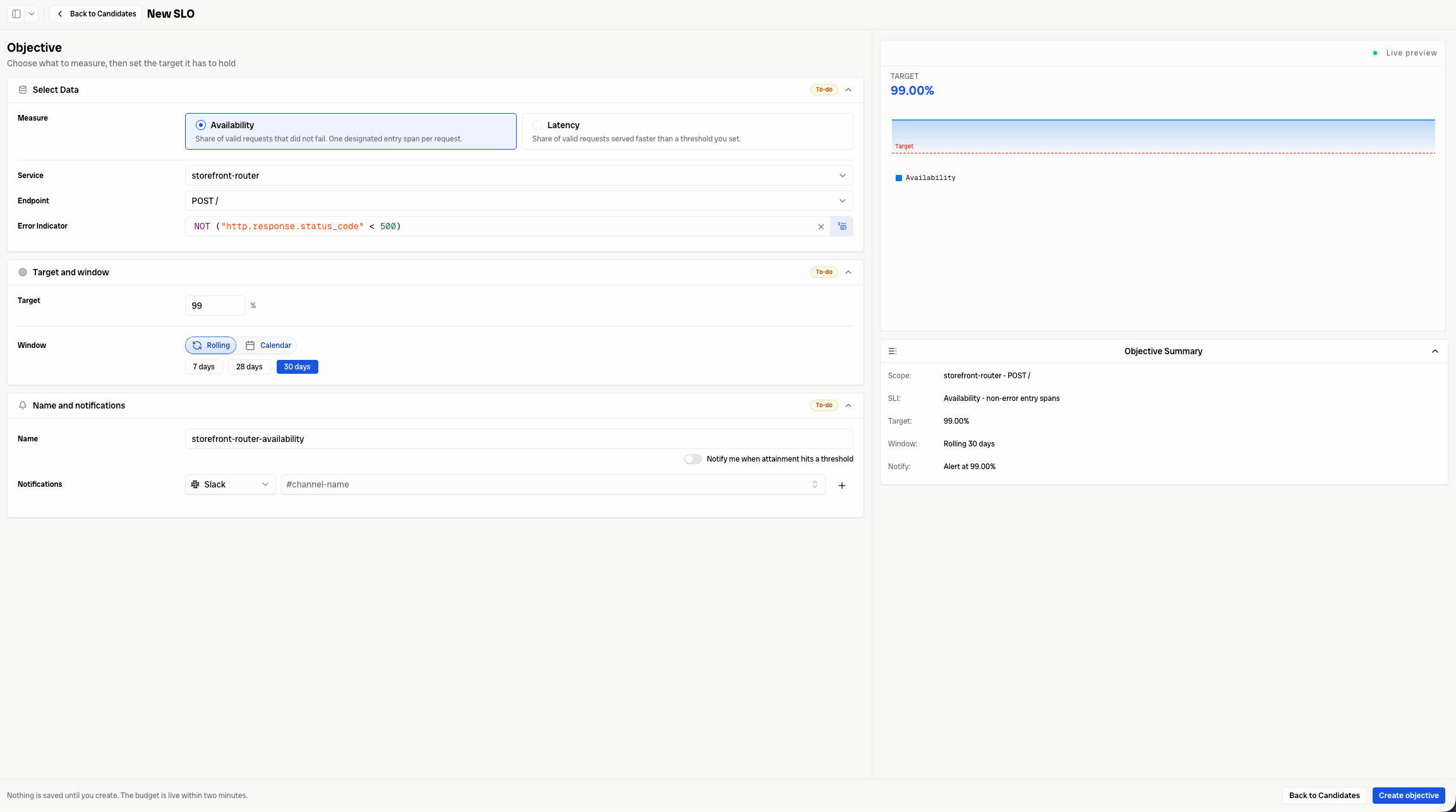
Availability measures the share of valid requests that did not fail. Bronto evaluates one designated entry span per request.
Select the service and endpoint, then define the **Error Indicator** that identifies a failed request. For example, `NOT ("http.response.status_code" < 500)` treats responses with a status code of `500` or greater as errors.
 Latency measures the share of valid requests completed faster than a threshold you set.
Select the service and endpoint, then enter the **Latency Threshold** in milliseconds. Requests faster than this threshold count as good requests.
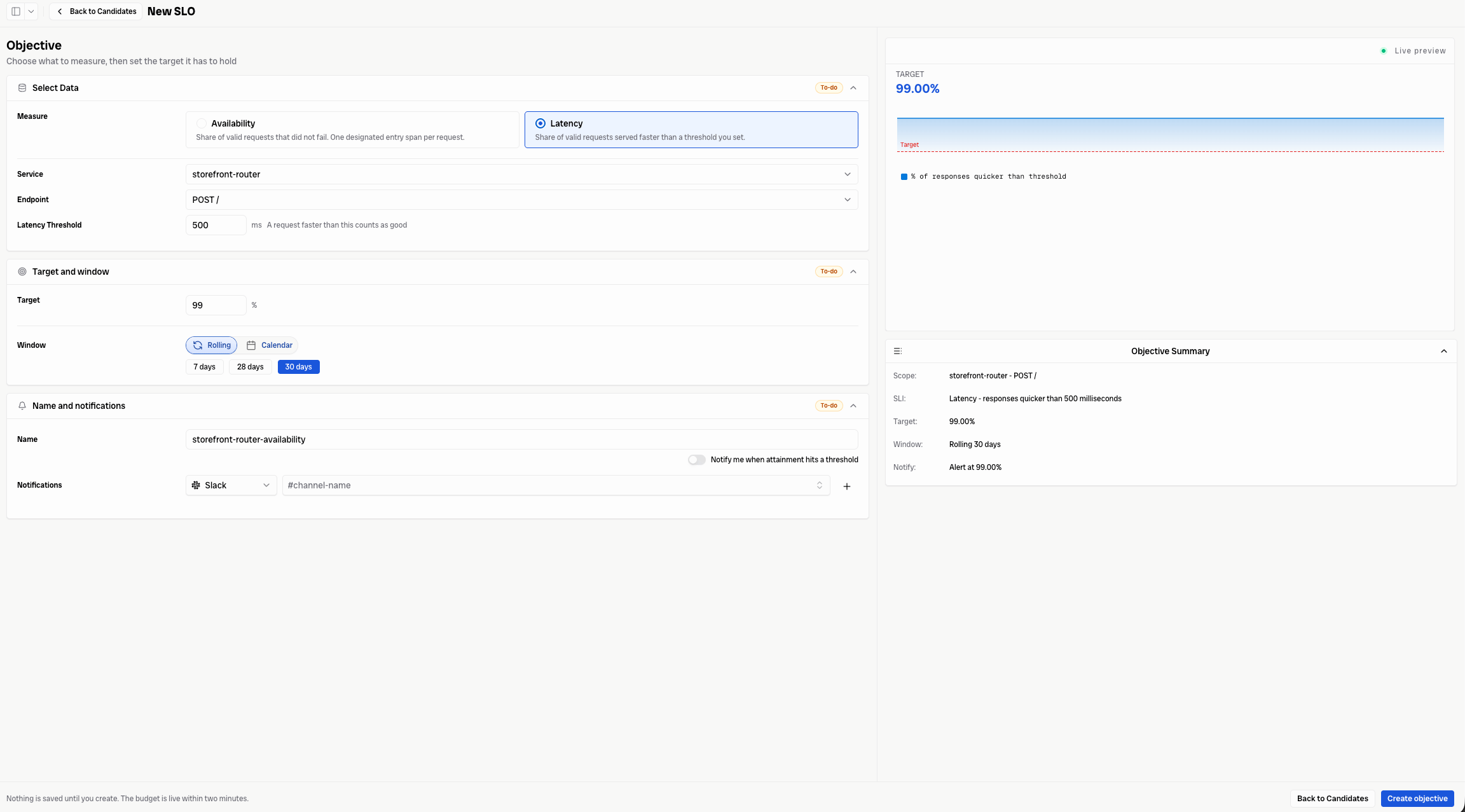
Latency measures the share of valid requests completed faster than a threshold you set.
Select the service and endpoint, then enter the **Latency Threshold** in milliseconds. Requests faster than this threshold count as good requests.
 ### Set the target and window
Enter the percentage of requests that must meet the SLI. For example, a target of `99%` requires 99 out of every 100 valid requests to be successful or faster than the selected threshold.
Choose how Bronto evaluates the target:
* **Rolling** continuously evaluates the most recent window.
* **Calendar** evaluates the selected calendar-aligned window.
Select the required window length from the available options, such as 7, 28, or 30 days.
### Configure notifications
Give the objective a descriptive name. To receive an alert, enable **Notify me when attainment hits a threshold**, then select a configured notification channel and destination, such as a Slack channel. See [Slack notifications](/integrations/slack) for setup instructions.
The **Live preview** and **Objective Summary** update as you configure the objective. Use them to confirm the scope, SLI, target, window, and notification settings before creating it.
Nothing is saved until you select **Create objective**. After creation, the error budget can take up to two minutes to become available.
This documentation is built and hosted on [Mintlify](https://mintlify.com), a developer documentation platform.
### Set the target and window
Enter the percentage of requests that must meet the SLI. For example, a target of `99%` requires 99 out of every 100 valid requests to be successful or faster than the selected threshold.
Choose how Bronto evaluates the target:
* **Rolling** continuously evaluates the most recent window.
* **Calendar** evaluates the selected calendar-aligned window.
Select the required window length from the available options, such as 7, 28, or 30 days.
### Configure notifications
Give the objective a descriptive name. To receive an alert, enable **Notify me when attainment hits a threshold**, then select a configured notification channel and destination, such as a Slack channel. See [Slack notifications](/integrations/slack) for setup instructions.
The **Live preview** and **Objective Summary** update as you configure the objective. Use them to confirm the scope, SLI, target, window, and notification settings before creating it.
Nothing is saved until you select **Create objective**. After creation, the error budget can take up to two minutes to become available.
This documentation is built and hosted on [Mintlify](https://mintlify.com), a developer documentation platform.