> ## Documentation Index
> Fetch the complete documentation index at: https://docs.bronto.io/llms.txt
> Use this file to discover all available pages before exploring further.
# Monitoring Overview & Threshold Monitors
> Create threshold monitors in Bronto to run searches against your telemetry on a schedule and alert teams via email, webhooks, Slack, or PagerDuty.
## Overview
Bronto gives you the ability to create monitors that actively run searches across your data and notify your teams via email or custom webhooks.
## Create Monitors
To create monitors in Bronto:
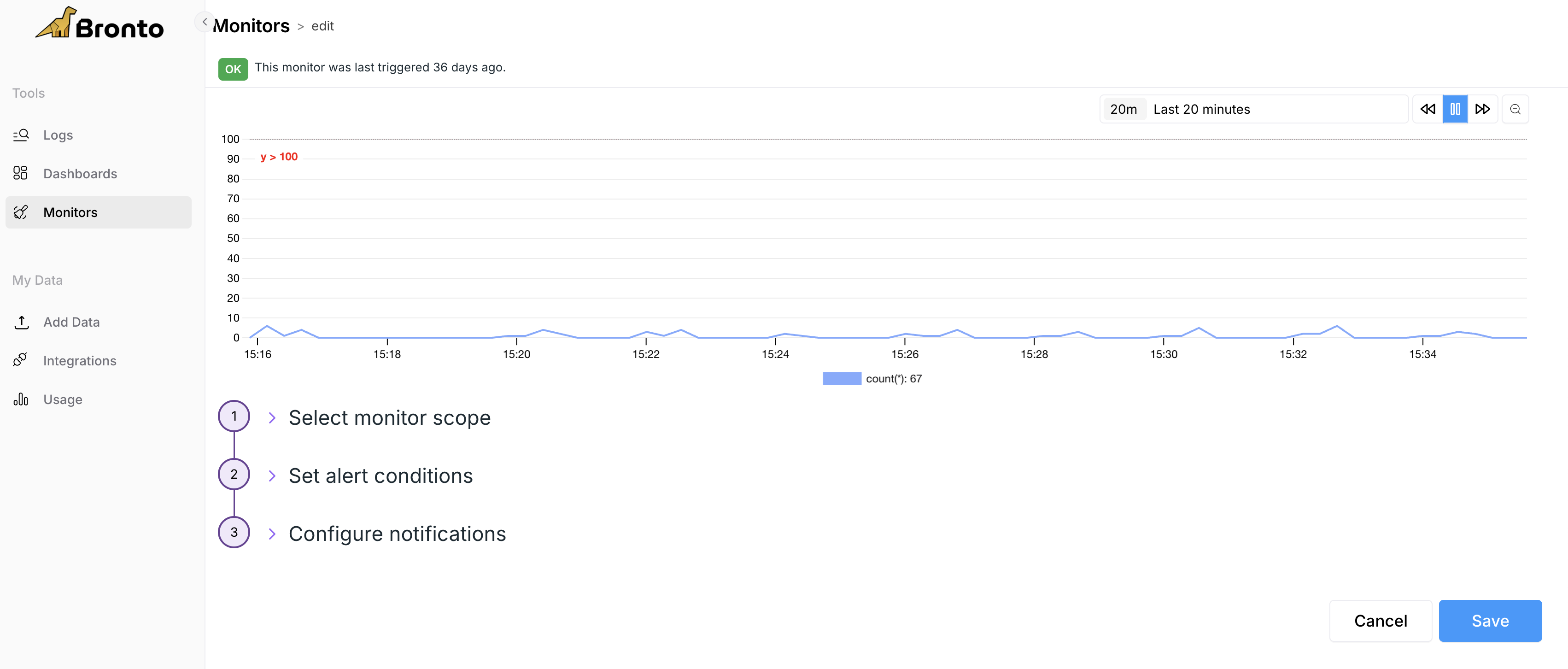
Navigate to **Monitors** > **New Monitor**.
Select the dataset(s) that define the monitor's scope.
Apply a **filter** using Bronto's search syntax. For details, see [Search Syntax](/query-syntax/search-syntax).
Evaluate the query over desired time from the predefined options in **minutes**, **hours** or **days**.
Set Alert Conditions. Configure monitors to trigger if the query value crosses a threshold.
Lastly, give the monitor a **name**, **description** , **email address** which can be an existing user or a custom email or select an existing webhook where the notification will be sent to.
 ## Add Queries and Formulas
Use **+ Add Query** and **+ Add Formula** to build a monitor from more than one query result. Each query has a name, such as `errors` or `requests`, which you can reference in a formula.
If a monitor includes more than one query, add a formula to combine the query results before configuring the alert condition.
### Add a Query
Select **+ Add Query** to add another independently configured query to the monitor. The new query can use a different scope, filter, aggregation, or grouping from the first query.
For example, to prepare a monitor that tracks the HTTP error rate:
1. Configure query `errors` to count requests with a status code of `500` or higher.
2. Select **+ Add Query**.
3. Configure query `requests` to count all requests.
The monitor now has the failed request count in `errors` and the total request count in `requests`.
### Add a Formula
Select **+ Add Formula** to calculate a value from numbers, query results, or a combination of both. Reference a query by entering its query name in the formula.
Formulas support:
* Parentheses: `(` and `)`
* Addition, subtraction, multiplication, and division: `+`, `-`, `*`, and `/`
* Numerical constants, including decimals, such as `100`, `5`, or `1.5`
* Variables that match the names of queries in the monitor
Variable names must be alphanumeric and start with a letter. Only variables based on query names in the monitor are allowed. You can reference any number of variables in a formula, and each monitor can include up to six queries.
You can also use `+` and `-` as unary operators to explicitly set the sign of a value. For example, `errors + -5`, `-requests + 1000`, and `errors + +requests` are valid formulas.
Continuing the HTTP error-rate example:
1. Select **+ Add Formula**.
2. Enter `errors / requests * 100` to calculate the percentage of requests that returned server errors.
3. Configure the alert condition against the formula result. For example, trigger the monitor when the error rate is above `5`.
This alerts when more than 5% of requests return server errors.
## Setting Alert Conditions
The alert conditions can be configured to trigger if the count of the query reaches a predefind threshold.
* Evaluate the query count over the last: *5 minutes*, *10 minutes*, *30 minutes*, *1 hour*, *2 hours*, *4 hours* or *1 day*. Evaluation is across a rolling time window in groups aligned from midnight.
* Evaluate if query is *above*, *above or equal to*, *below*, or *below or equal* to the threshold.
* Trigger if Alert Threshold literal value is matched.
## Configure notifications
Configure your notification messages to include the information you are most interested in and specify which user, email or webhook to send these alerts to.
* Monitor Name.
* Monitor Description.
* View a preview of what the notification will look like.
If you are sending monitor alerts to a webhook, see [Sample Payload Schema](/integrations/webhooks#sample-payload-schema) for the available variables and JSON template options.
## Manage Monitors
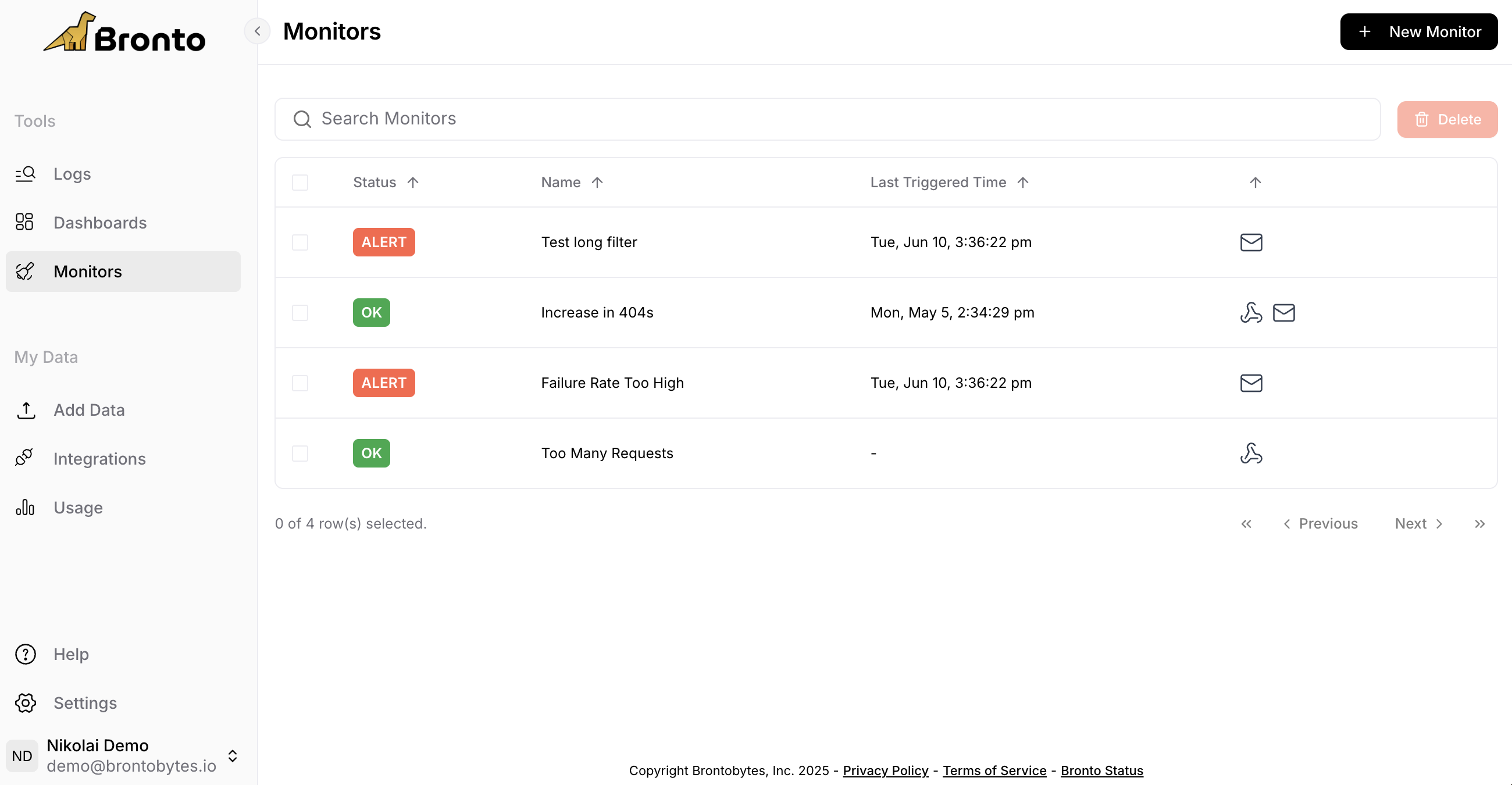
Manage Monitors by editing, creating, bulk deleting and searching monitors all in the same place. From here you can easily view what email or webhook is associated to each monitor.
## Add Queries and Formulas
Use **+ Add Query** and **+ Add Formula** to build a monitor from more than one query result. Each query has a name, such as `errors` or `requests`, which you can reference in a formula.
If a monitor includes more than one query, add a formula to combine the query results before configuring the alert condition.
### Add a Query
Select **+ Add Query** to add another independently configured query to the monitor. The new query can use a different scope, filter, aggregation, or grouping from the first query.
For example, to prepare a monitor that tracks the HTTP error rate:
1. Configure query `errors` to count requests with a status code of `500` or higher.
2. Select **+ Add Query**.
3. Configure query `requests` to count all requests.
The monitor now has the failed request count in `errors` and the total request count in `requests`.
### Add a Formula
Select **+ Add Formula** to calculate a value from numbers, query results, or a combination of both. Reference a query by entering its query name in the formula.
Formulas support:
* Parentheses: `(` and `)`
* Addition, subtraction, multiplication, and division: `+`, `-`, `*`, and `/`
* Numerical constants, including decimals, such as `100`, `5`, or `1.5`
* Variables that match the names of queries in the monitor
Variable names must be alphanumeric and start with a letter. Only variables based on query names in the monitor are allowed. You can reference any number of variables in a formula, and each monitor can include up to six queries.
You can also use `+` and `-` as unary operators to explicitly set the sign of a value. For example, `errors + -5`, `-requests + 1000`, and `errors + +requests` are valid formulas.
Continuing the HTTP error-rate example:
1. Select **+ Add Formula**.
2. Enter `errors / requests * 100` to calculate the percentage of requests that returned server errors.
3. Configure the alert condition against the formula result. For example, trigger the monitor when the error rate is above `5`.
This alerts when more than 5% of requests return server errors.
## Setting Alert Conditions
The alert conditions can be configured to trigger if the count of the query reaches a predefind threshold.
* Evaluate the query count over the last: *5 minutes*, *10 minutes*, *30 minutes*, *1 hour*, *2 hours*, *4 hours* or *1 day*. Evaluation is across a rolling time window in groups aligned from midnight.
* Evaluate if query is *above*, *above or equal to*, *below*, or *below or equal* to the threshold.
* Trigger if Alert Threshold literal value is matched.
## Configure notifications
Configure your notification messages to include the information you are most interested in and specify which user, email or webhook to send these alerts to.
* Monitor Name.
* Monitor Description.
* View a preview of what the notification will look like.
If you are sending monitor alerts to a webhook, see [Sample Payload Schema](/integrations/webhooks#sample-payload-schema) for the available variables and JSON template options.
## Manage Monitors
Manage Monitors by editing, creating, bulk deleting and searching monitors all in the same place. From here you can easily view what email or webhook is associated to each monitor.
 ## View Monitor Details & Status
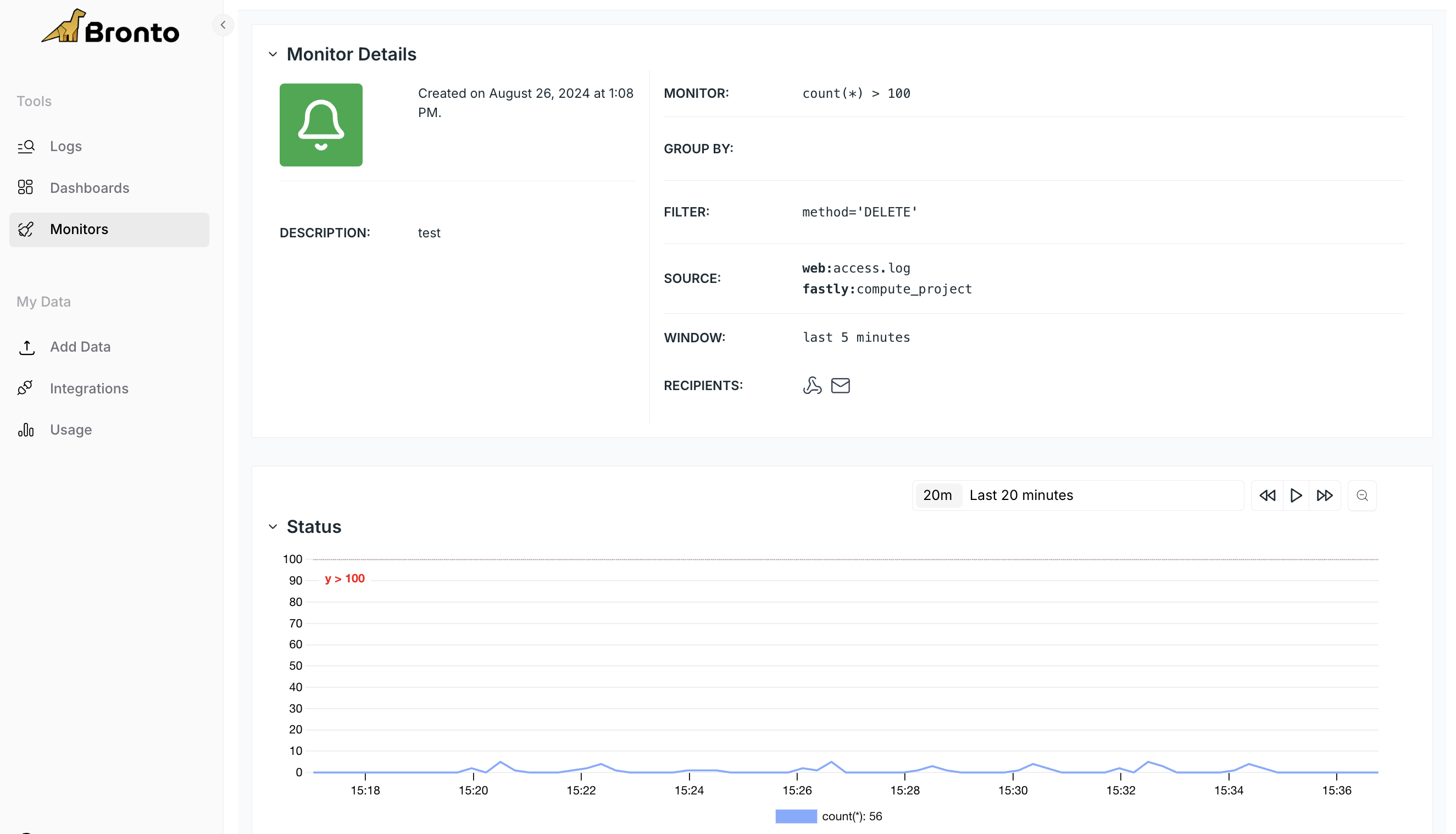
Selecting a monitor to review from your list allows you to see its details which include its filter, source and recipients. From this page you can also view the status and event history
## View Monitor Details & Status
Selecting a monitor to review from your list allows you to see its details which include its filter, source and recipients. From this page you can also view the status and event history
 ## AI Investigation Reports
When a monitor fires, Bronto can automatically run an investigation and deliver a detailed report. This helps responders move from alert to diagnosis faster by attaching AI-generated analysis directly to the monitoring workflow.
Enable **AI Investigation Report** in the monitor configuration, then provide an **Investigation Prompt** to tell the AI what to check when the alert triggers.
For the full workflow, prompt guidance, and feature details, see [AI Investigation Reports](/ai-features/ai-investigation-reports).
## AI Investigation Reports
When a monitor fires, Bronto can automatically run an investigation and deliver a detailed report. This helps responders move from alert to diagnosis faster by attaching AI-generated analysis directly to the monitoring workflow.
Enable **AI Investigation Report** in the monitor configuration, then provide an **Investigation Prompt** to tell the AI what to check when the alert triggers.
For the full workflow, prompt guidance, and feature details, see [AI Investigation Reports](/ai-features/ai-investigation-reports).