> ## Documentation Index
> Fetch the complete documentation index at: https://docs.bronto.io/llms.txt
> Use this file to discover all available pages before exploring further.
# Saved Searches
> Save search queries, filters and column layouts as Saved Searches in Bronto so your team can quickly switch between troubleshooting contexts and shared workflows.
## Overview
The Saved Searches panel groups your searches into **Favourites**, **Created by Me** and **Created by Others**, so you can separate your own work from searches shared across your account. A **By Tag** group also appears once any of your saved searches are tagged.
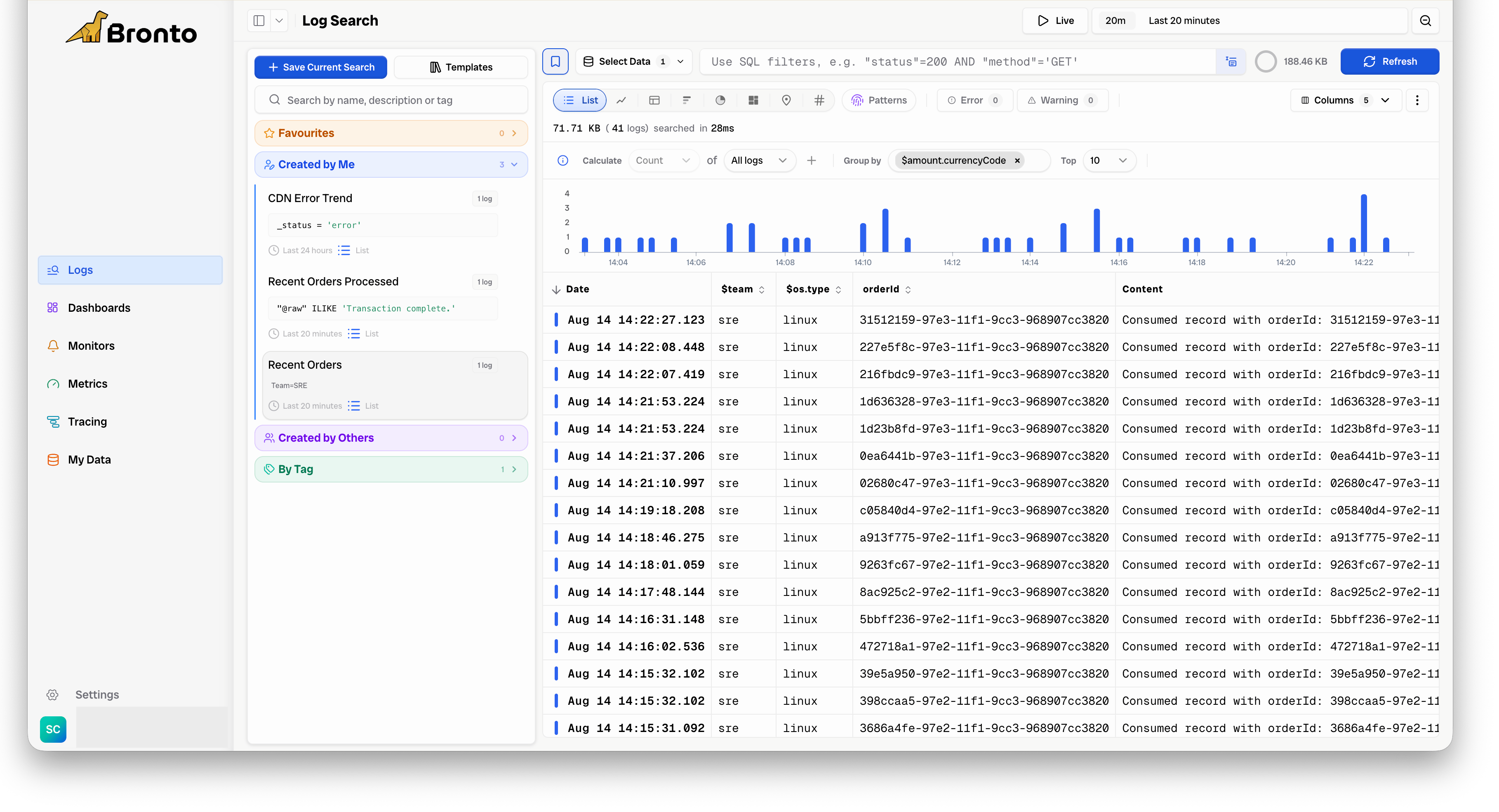 A saved search stores the selected data, the search query, any visualisation you had selected, and your column selection and ordering.
**From the Saved Searches panel you can:**
* Load or reload a saved search.
* Edit, add to favourites, or delete a saved search from its `...` menu.
**How to create a Saved Search:**
* Run a search using the conditions you want to save or share.
* Click **Save Current Search** at the top of the panel. A new panel will appear where you can enter a name for your saved search.
* Enter a name and click Save to confirm.
Column selection and ordering have been stored with saved searches since July 2025. Searches created before then have no stored column layout, so Bronto derives a sensible default from the log type when you load them.
A saved search stores the selected data, the search query, any visualisation you had selected, and your column selection and ordering.
**From the Saved Searches panel you can:**
* Load or reload a saved search.
* Edit, add to favourites, or delete a saved search from its `...` menu.
**How to create a Saved Search:**
* Run a search using the conditions you want to save or share.
* Click **Save Current Search** at the top of the panel. A new panel will appear where you can enter a name for your saved search.
* Enter a name and click Save to confirm.
Column selection and ordering have been stored with saved searches since July 2025. Searches created before then have no stored column layout, so Bronto derives a sensible default from the log type when you load them.