> ## Documentation Index
> Fetch the complete documentation index at: https://docs.bronto.io/llms.txt
> Use this file to discover all available pages before exploring further.
# Data Organization
> Organize log data in Bronto using datasets, collections, tags, and partition tags to scope queries, control access, and manage retention efficiently.
## Core Concepts: Datasets & Collections
Log events in the Bronto Logging Platform are organized and stored in **datasets** and **collections**.
### Datasets
A **Dataset** (named `log` in the current API) is the fundamental unit of storage. It acts as a container for log events that share a similar format and origin, such as:
* `application-logs`
* `nginx-access`
Key characteristics:
* All events within the same dataset are always queried together.
* The dataset **must be specified at ingestion time** by configuring the agent or integration.
* Dataset names must be **unique within a collection**.
To learn how to configure datasets during ingestion, see the [agent setup documentation](https://docs.bronto.io/agent-setup/agent-intro).
> **Note**\
> Bronto supports up to **5,000 unique datasets per organization**.
***
### Collections
A **Collection** (named `logset` in the current API) is a logical grouping of datasets.
Think of a collection as a folder that helps you organize related datasets and distinguish between datasets that may share the same name but come from different environments.
Key points:
* Collections improve discoverability and organization.
* The collection can be specified using the `x-bronto-collection` HTTP header (or equivalent).
* Collection configuration is described in the [agent setup documentation](https://docs.bronto.io/agent-setup/agent-intro).
***
## Tags
**Tags** are key-value pairs assigned to datasets to categorize them across your system, for example:
* `team:backend`
* `env:production`
* `type:gc`
* `service:catalog`
Tags make it easier to:
* Select datasets in the UI
* Query multiple datasets together
* Build precise dashboards and monitors at scale
Proper tagging is essential when managing thousands of datasets.
## Assigning Tags
You can assign tags to datasets in three ways:
* **Via UI**: apply or remove tags from the Logs screen
* **Via API**: create tags and assign them programmatically
* **At ingestion**: automatically attach tags to ingested data via the `x-bronto-tags` HTTP header (agent-level)
### Assign tags via the UI (Logs screen)
Use the UI when you want to quickly apply tags to a dataset.
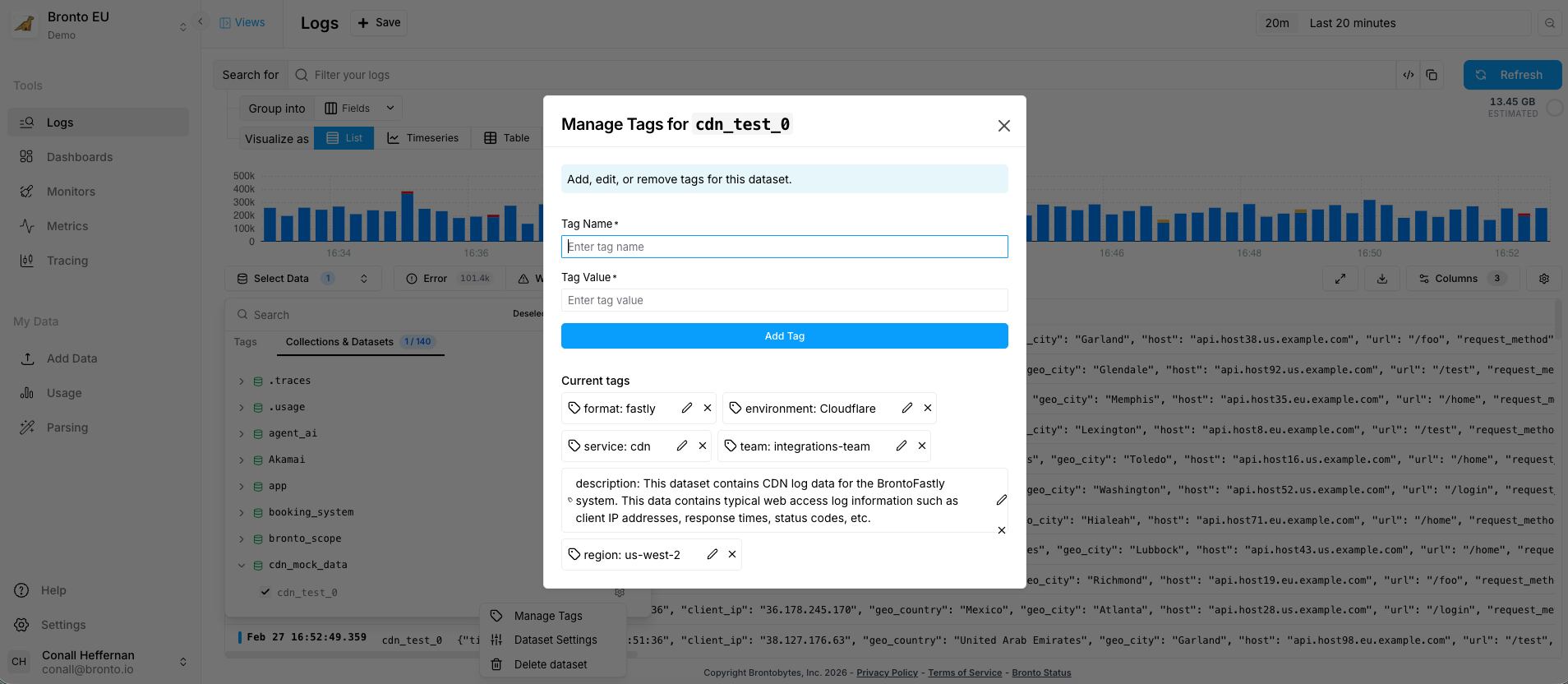 1. In the left navigation, open **Logs**.
2. Click **Select Data** dropdown.
3. Expand the relevant **Collection**.
4. Hover over the **Dataset** you want to tag.
5. Click the settings icon.
6. Select **Manage Tags**.
7. Fill out Tag Name and Value.
8. Click **Add / Apply** to confirm.
### Assign tags via the API
Create a tag (and then assign/use it in your workflows) using the Tags API:
* [https://docs.bronto.io/api-reference/tags/create-a-tag](https://docs.bronto.io/api-reference/tags/create-a-tag)
### Assign tags at ingestion (agent-level)
Use ingestion tagging when you want tags applied automatically as data enters Bronto.
Tags must be specified at the **agent level** using the `x-bronto-tags` HTTP header (or your agent’s equivalent configuration). For example:
* Set `x-bronto-tags` to a comma-separated list of tags (example format may vary by agent).
* The agent attaches those tags to any data it ingests.
For step-by-step setup instructions (agent-specific), see:
* [https://docs.bronto.io/agent-setup/agent-intro](https://docs.bronto.io/agent-setup/agent-intro)
**Note:** Each dataset can have up to **10 tags**.
Tags can be used simply as labels to add metadata and context, or as part of a more advanced data organization strategy using **partition tags**.
***
## Partition Tags
**Partition Tags** are a special subset of tags defined at the **organization level**. They allow Bronto to automatically organize your data in a consistent and scalable way.
Partition tags are especially useful for:
* Large environments
* Structured infrastructures
* Reducing agent configuration complexity
* Enforcing consistent collection and dataset placement
### How Partition Tags Work
* Bronto uses partition tags to determine how incoming data is grouped into collections and datasets.
* If a collection header is explicitly set, it **takes precedence** and overrides partition tag logic.
* To fully leverage partition tags, omit the collection header during ingestion.
### Setup Flow: UI + Ingestion Headers
1. In **Settings -> Partition Tags**, enable partition tags and define the hierarchy order (broadest to most specific).
1. In the left navigation, open **Logs**.
2. Click **Select Data** dropdown.
3. Expand the relevant **Collection**.
4. Hover over the **Dataset** you want to tag.
5. Click the settings icon.
6. Select **Manage Tags**.
7. Fill out Tag Name and Value.
8. Click **Add / Apply** to confirm.
### Assign tags via the API
Create a tag (and then assign/use it in your workflows) using the Tags API:
* [https://docs.bronto.io/api-reference/tags/create-a-tag](https://docs.bronto.io/api-reference/tags/create-a-tag)
### Assign tags at ingestion (agent-level)
Use ingestion tagging when you want tags applied automatically as data enters Bronto.
Tags must be specified at the **agent level** using the `x-bronto-tags` HTTP header (or your agent’s equivalent configuration). For example:
* Set `x-bronto-tags` to a comma-separated list of tags (example format may vary by agent).
* The agent attaches those tags to any data it ingests.
For step-by-step setup instructions (agent-specific), see:
* [https://docs.bronto.io/agent-setup/agent-intro](https://docs.bronto.io/agent-setup/agent-intro)
**Note:** Each dataset can have up to **10 tags**.
Tags can be used simply as labels to add metadata and context, or as part of a more advanced data organization strategy using **partition tags**.
***
## Partition Tags
**Partition Tags** are a special subset of tags defined at the **organization level**. They allow Bronto to automatically organize your data in a consistent and scalable way.
Partition tags are especially useful for:
* Large environments
* Structured infrastructures
* Reducing agent configuration complexity
* Enforcing consistent collection and dataset placement
### How Partition Tags Work
* Bronto uses partition tags to determine how incoming data is grouped into collections and datasets.
* If a collection header is explicitly set, it **takes precedence** and overrides partition tag logic.
* To fully leverage partition tags, omit the collection header during ingestion.
### Setup Flow: UI + Ingestion Headers
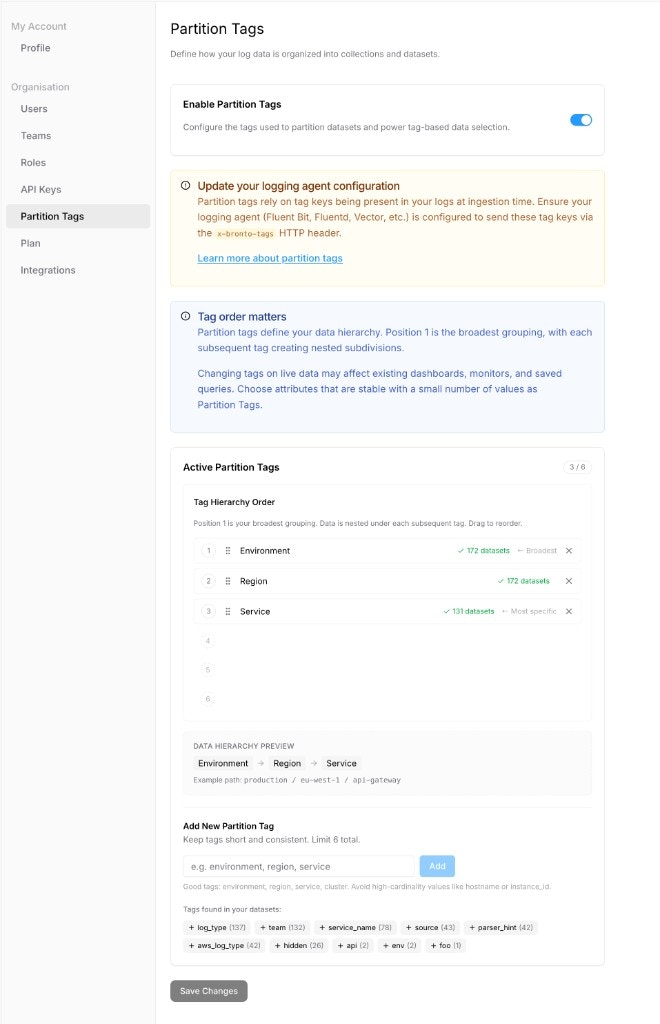
1. In **Settings -> Partition Tags**, enable partition tags and define the hierarchy order (broadest to most specific).
 2. Update your ingestion agent config so `x-bronto-tags` includes the same tag keys you configured as partition tags.
```bash theme={"dark"}
x-bronto-tags: environment=production,region=us-east-1,service=api-gateway
```
Defining partition tags in the UI is not enough by itself. Bronto can only apply the partition hierarchy when those keys are present at ingestion time via the `x-bronto-tags` header.
If partition tag keys are missing in incoming logs, data will not be grouped into the expected partition hierarchy and can appear under unexpected dataset groupings.
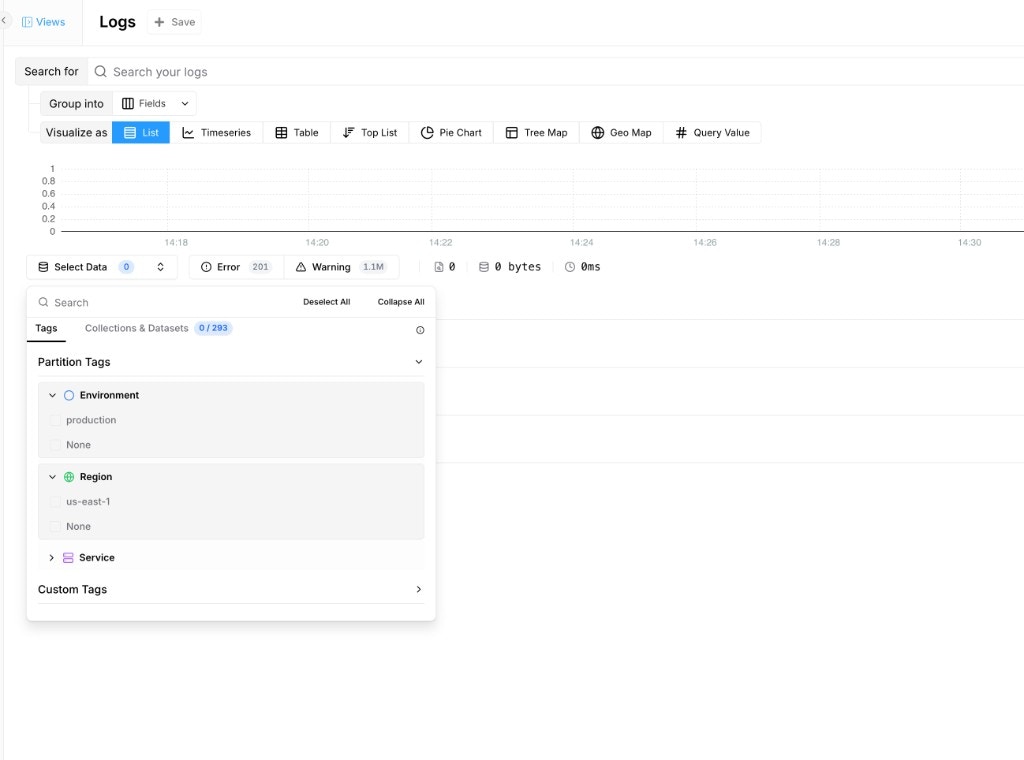
3. Open **Logs** and verify the partition tags appear in the dataset selector.
2. Update your ingestion agent config so `x-bronto-tags` includes the same tag keys you configured as partition tags.
```bash theme={"dark"}
x-bronto-tags: environment=production,region=us-east-1,service=api-gateway
```
Defining partition tags in the UI is not enough by itself. Bronto can only apply the partition hierarchy when those keys are present at ingestion time via the `x-bronto-tags` header.
If partition tag keys are missing in incoming logs, data will not be grouped into the expected partition hierarchy and can appear under unexpected dataset groupings.
3. Open **Logs** and verify the partition tags appear in the dataset selector.
 ***
## Choosing Your Partition Tags
Partition tags define your data hierarchy, so they should be chosen carefully—ideally during the initial account configuration.
### Characteristics of Good Partition Tags
Partition tags should:
* Be **low-cardinality**
* Represent attributes that are **intrinsically tied to the data source**
* Remain **stable over time**
**Good examples:**
* `environment`
* `region`
* `datacenter`
* `account`
* `cluster`
* `service`
* `product`
**Bad examples:**
* `team`\
Teams and responsibilities change frequently. Team ownership is valuable metadata, but not suitable for defining data hierarchy.
* High-cardinality or volatile attributes such as:
* `hostname`
* `instance_id`
* `pod_id`
* `ip_address`
These attributes change often and can lead to excessive dataset creation. They also do not make sense as dataset tags and should instead be included at the **log event level**.
> **Warning**\
> While partition tags can be modified at any time, changing them on live data is a **sensitive operation**. Updates may cause new datasets to be created for existing streams, potentially breaking dashboards, monitors, and saved queries.
***
## Example: Designing Partition Tags
### Context
Your infrastructure includes:
* **Environments**: `staging`, `production`
* **Regions**: `eu`, `us`
* **Services**: `catalog`, `checkout`, `payment`, `cart`
* **Teams**: `team-a`, `team-b`
Each service produces multiple log streams, such as:
* Syslog
* Application logs
* Garbage collection logs
### Recommended Partition Tags
* environment
* region
* service
Why this works:
* These descriptors are stable and directly tied to where and what generates logs.
* They clearly identify the source of the data.
* They scale well as your infrastructure grows.
In this setup:
* The **dataset name** should represent the log stream (e.g., `application`, `gc`, `syslog`).
* Collections and datasets are automatically and consistently organized.
### Why Not Use `team` as a Partition Tag?
Team ownership changes over time. If a service moves from `team-a` to `team-b`:
* The partition tag combination changes
* New datasets are created for the same service
* Old datasets stop receiving data
* Existing dashboards, monitors, and queries may break or return incomplete results
**Best practice:**\
Use `team` as a **regular tag**, not a partition tag. This allows you to update ownership metadata without disrupting your data organization or historical visibility.
***
## Choosing Your Partition Tags
Partition tags define your data hierarchy, so they should be chosen carefully—ideally during the initial account configuration.
### Characteristics of Good Partition Tags
Partition tags should:
* Be **low-cardinality**
* Represent attributes that are **intrinsically tied to the data source**
* Remain **stable over time**
**Good examples:**
* `environment`
* `region`
* `datacenter`
* `account`
* `cluster`
* `service`
* `product`
**Bad examples:**
* `team`\
Teams and responsibilities change frequently. Team ownership is valuable metadata, but not suitable for defining data hierarchy.
* High-cardinality or volatile attributes such as:
* `hostname`
* `instance_id`
* `pod_id`
* `ip_address`
These attributes change often and can lead to excessive dataset creation. They also do not make sense as dataset tags and should instead be included at the **log event level**.
> **Warning**\
> While partition tags can be modified at any time, changing them on live data is a **sensitive operation**. Updates may cause new datasets to be created for existing streams, potentially breaking dashboards, monitors, and saved queries.
***
## Example: Designing Partition Tags
### Context
Your infrastructure includes:
* **Environments**: `staging`, `production`
* **Regions**: `eu`, `us`
* **Services**: `catalog`, `checkout`, `payment`, `cart`
* **Teams**: `team-a`, `team-b`
Each service produces multiple log streams, such as:
* Syslog
* Application logs
* Garbage collection logs
### Recommended Partition Tags
* environment
* region
* service
Why this works:
* These descriptors are stable and directly tied to where and what generates logs.
* They clearly identify the source of the data.
* They scale well as your infrastructure grows.
In this setup:
* The **dataset name** should represent the log stream (e.g., `application`, `gc`, `syslog`).
* Collections and datasets are automatically and consistently organized.
### Why Not Use `team` as a Partition Tag?
Team ownership changes over time. If a service moves from `team-a` to `team-b`:
* The partition tag combination changes
* New datasets are created for the same service
* Old datasets stop receiving data
* Existing dashboards, monitors, and queries may break or return incomplete results
**Best practice:**\
Use `team` as a **regular tag**, not a partition tag. This allows you to update ownership metadata without disrupting your data organization or historical visibility.