> ## Documentation Index
> Fetch the complete documentation index at: https://docs.bronto.io/llms.txt
> Use this file to discover all available pages before exploring further.
# Google SAML IdP
> Configure Google Workspace as a SAML identity provider for Bronto so users can sign in with their existing Google accounts via single sign-on.
Configure Google Workspace as a SAML identity provider so your users can sign in to Bronto with their existing Google accounts. You start the provider in Bronto to obtain the values to paste into Google, configure the Google SAML app, then finish the Bronto wizard.
## Step 1: Start the provider in Bronto
In Bronto, go to **Settings** > **Authentication** > **Login Methods** and click **Add Provider** in the **SSO** section. Set **Choose protocol** to **SAML**.
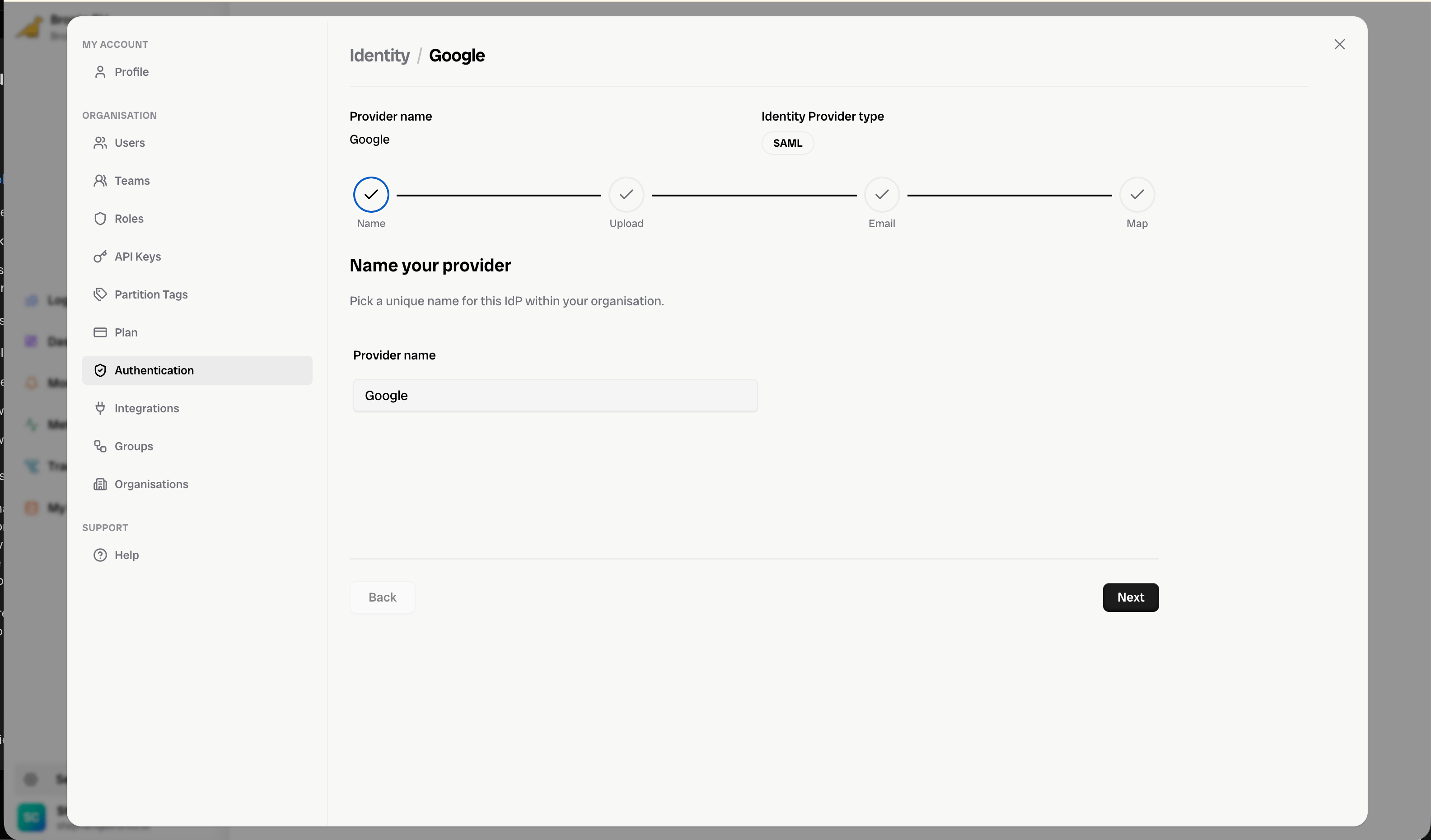
### Name
Pick a unique name for this IdP within your organisation (e.g. "Google").
 ### Upload
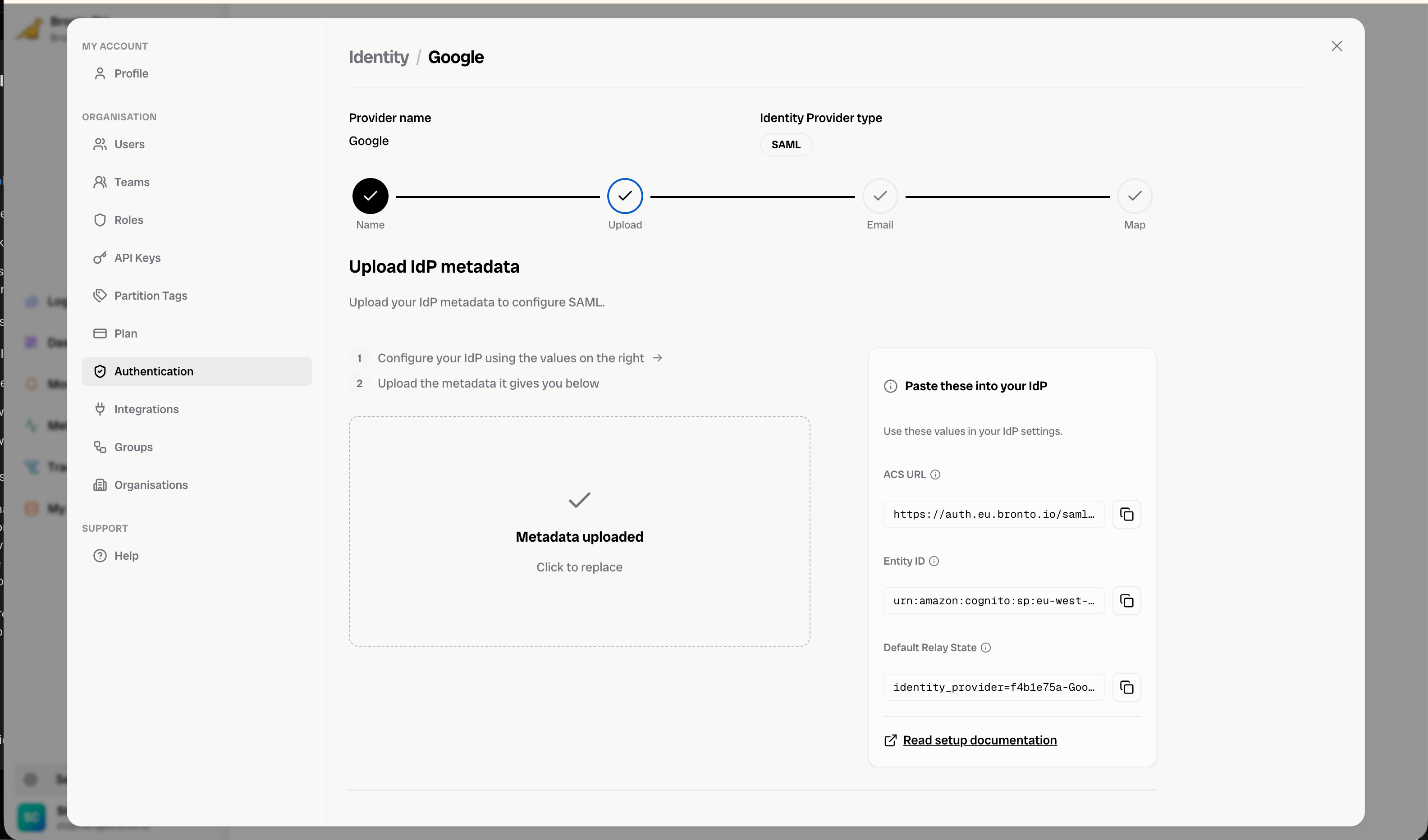
On the **Upload** step, the **Paste these into your IdP** panel shows the values you need to configure the Google SAML app — the **ACS URL**, **Entity ID**, and **Default Relay State**. Keep this open while you configure Google in Step 2, then upload the metadata XML that Google gives you back into this step.
### Upload
On the **Upload** step, the **Paste these into your IdP** panel shows the values you need to configure the Google SAML app — the **ACS URL**, **Entity ID**, and **Default Relay State**. Keep this open while you configure Google in Step 2, then upload the metadata XML that Google gives you back into this step.
 ## Step 2: Configure the SAML app in Google
[View the dedicated Google instructions](https://support.google.com/a/answer/6087519?hl=en#zippy=%2Cstep-add-the-custom-saml-app)
### Service Provider Details
* **Application Name -** Can be anything
* **Description -** Can be anything
* **ACS URL -** Use the **ACS URL** from the Bronto **Upload** step.
* **Entity ID -** Use the **Entity ID** from the Bronto **Upload** step.
* **Start URL -** Use the **Default Relay State** from the Bronto **Upload** step.
* **Signed Response -** Leave unchecked
* **Name ID -** Select **Basic Information** and **Primary Email**
### Attribute Mapping
Bronto requires a First name, Last name and Primary Email attributes from Basic Information. These can map to any fields, as long as you match the names used when configuring the IdP in Bronto.
If you wish to use role mapping, you must also configure attribute mapping from group membership to the attribute mapped to **custom:member\_of**. See [SSO Role Mapping](/Account-Management/SSO/SSO-Role-Mapping).
## Step 3: Finish the wizard in Bronto
Back in Bronto, upload the metadata XML from Google on the **Upload** step, then complete the remaining steps.
### Email
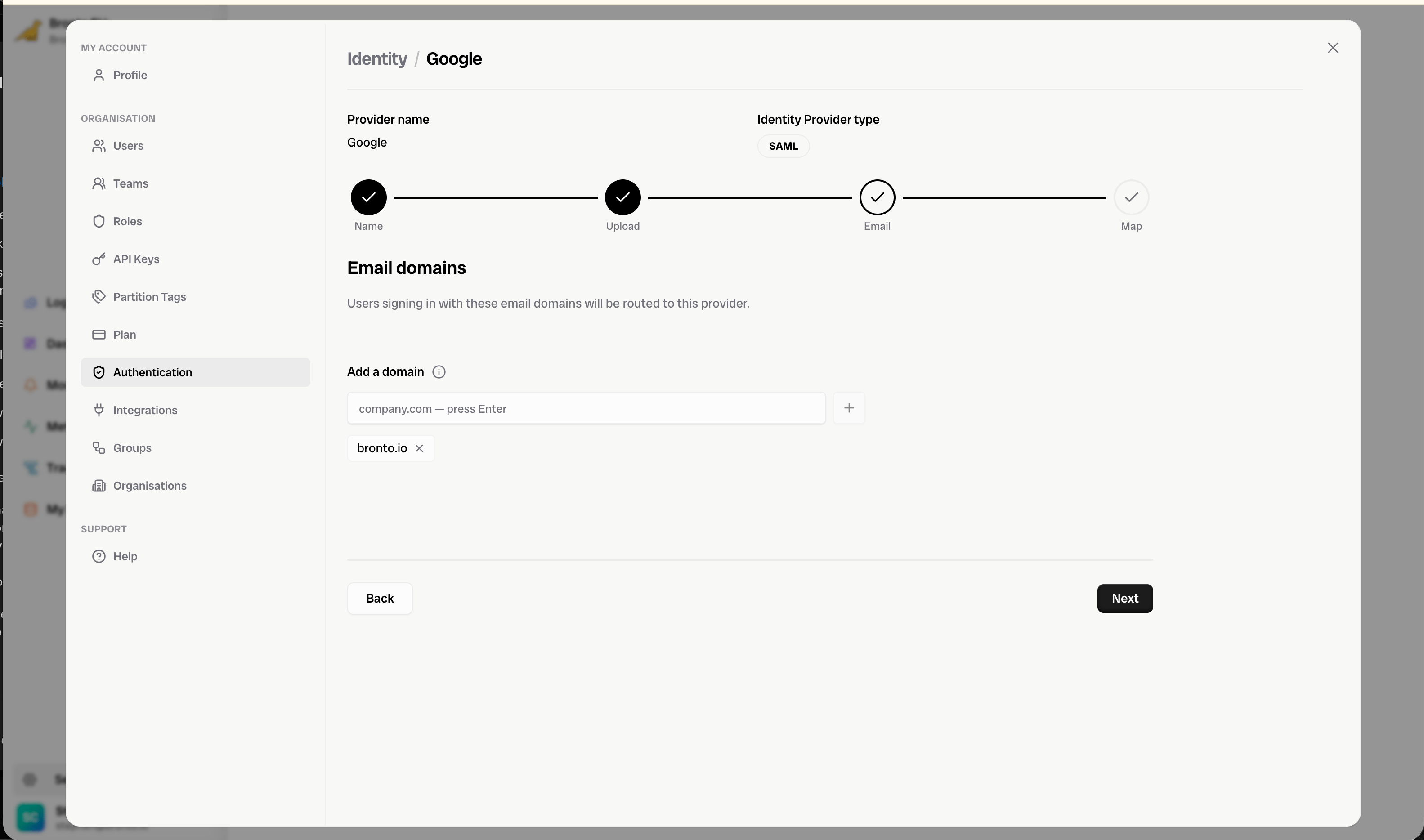
Add the email domains that should route to this provider (e.g. `bronto.io`). Type each domain and press **Enter**.
## Step 2: Configure the SAML app in Google
[View the dedicated Google instructions](https://support.google.com/a/answer/6087519?hl=en#zippy=%2Cstep-add-the-custom-saml-app)
### Service Provider Details
* **Application Name -** Can be anything
* **Description -** Can be anything
* **ACS URL -** Use the **ACS URL** from the Bronto **Upload** step.
* **Entity ID -** Use the **Entity ID** from the Bronto **Upload** step.
* **Start URL -** Use the **Default Relay State** from the Bronto **Upload** step.
* **Signed Response -** Leave unchecked
* **Name ID -** Select **Basic Information** and **Primary Email**
### Attribute Mapping
Bronto requires a First name, Last name and Primary Email attributes from Basic Information. These can map to any fields, as long as you match the names used when configuring the IdP in Bronto.
If you wish to use role mapping, you must also configure attribute mapping from group membership to the attribute mapped to **custom:member\_of**. See [SSO Role Mapping](/Account-Management/SSO/SSO-Role-Mapping).
## Step 3: Finish the wizard in Bronto
Back in Bronto, upload the metadata XML from Google on the **Upload** step, then complete the remaining steps.
### Email
Add the email domains that should route to this provider (e.g. `bronto.io`). Type each domain and press **Enter**.
 ### Map
Map your Google attributes to Bronto's required **First Name**, **Last Name**, and **Email**, matching the attribute names you configured in Google. To use role mapping, click **+ Add role mapping** and map your group membership attribute to **custom:member\_of**.
### Map
Map your Google attributes to Bronto's required **First Name**, **Last Name**, and **Email**, matching the attribute names you configured in Google. To use role mapping, click **+ Add role mapping** and map your group membership attribute to **custom:member\_of**.
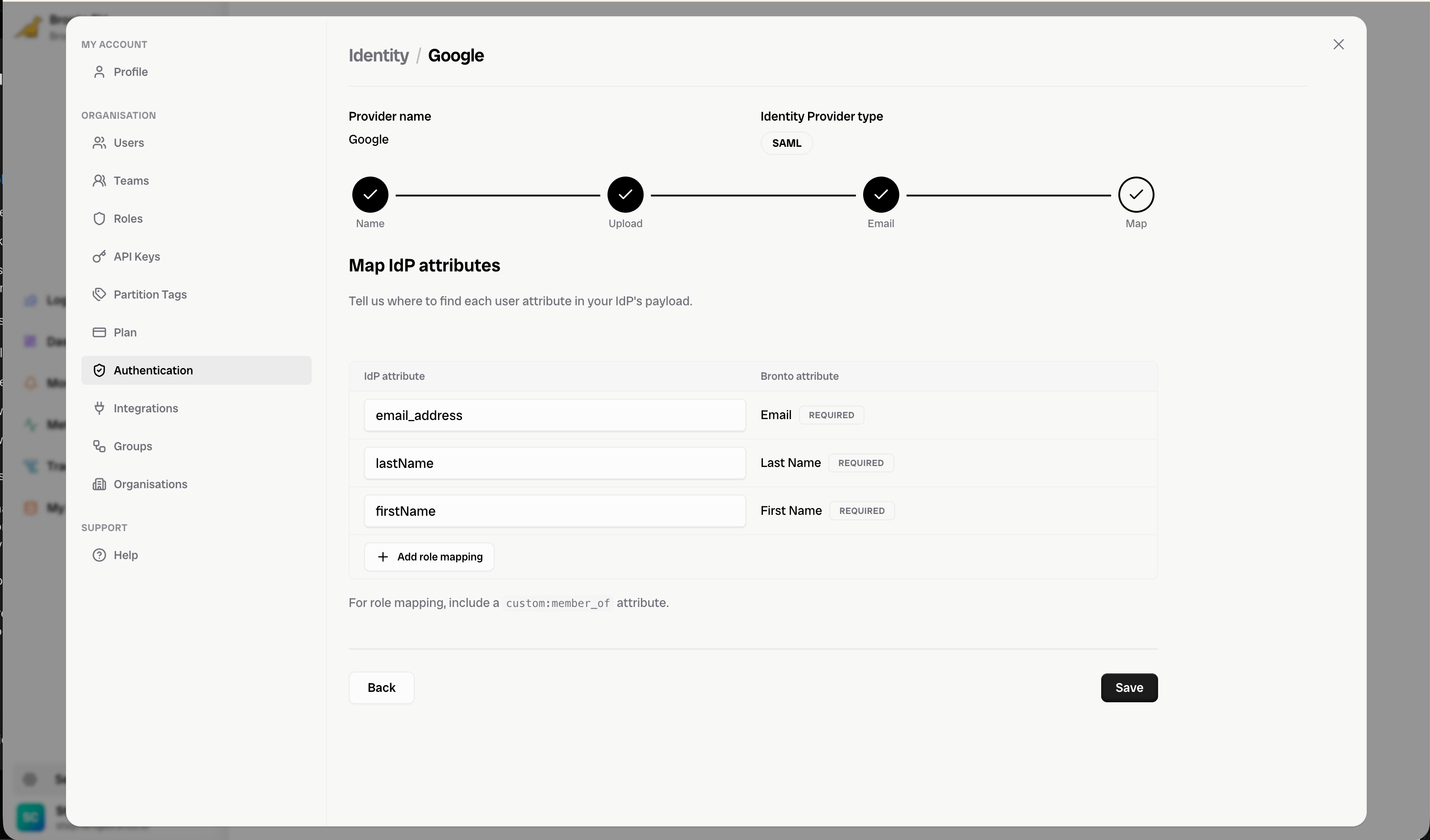 Click **Save** to create and enable the IdP.